

Visual regression testing ensures that web applications continue to look how they’re supposed to after updates or changes by helping to detect unintended visual discrepancies, like layout shifts and missing elements.
Overview
What Is Visual Regression Testing in WebdriverIO?
Visual Regression Testing in WebdriverIO (WDIO) compares current UI screenshots with a stored baseline to detect unintended visual changes. WDIO supports page, element, and full-page comparisons through the WebdriverIO Visual Service (@wdio/visual-service).
Steps to Perform Visual Regression Testing with WebdriverIO
- Install Required Packages: Set up WebdriverIO along with the visual comparison service to enable screenshot capture and baseline creation.
- Configure the Visual Service: Define screenshot folders, baseline directories, ignored regions, and comparison thresholds within the WDIO configuration.
- Capture a Baseline Image: Run your test once to generate baseline screenshots representing the expected UI state.
- Capture and Compare Screenshots: During subsequent runs, WebdriverIO captures new screenshots and compares them against the baseline to identify visual differences.
- Review Visual Diffs: Use the Visual Reporter to inspect mismatches, approve intentional UI updates, or update baseline images.
This guide provides an in-depth overview of performing visual regression testing using WebdriverIO.
What is Visual Regression Testing?
Visual Regression, to be specific, is intended to check that any code changes did not affect the UI by comparing screenshots from before and after. Visual regression tests are significant in identifying whether the visual errors have occurred after making changes to the code. It can be integrated into the existing test framework like WebdriverIO using tools that support visual tests.
Read More: How to run Regression Testing in Agile Teams
Visual Regression Testing with WebdriverIO Framework
WebdriverIO is a JavaScript automation framework for mobile and web applications. It lets you automate browser interactions using Selenium Webdriver or WebDriver protocol and supports a wide range of testing scenarios.
WebdriverIO is an effective tool for performing visual testing as it provides an API for image comparison. It provides services like Wdio-image-comparison-service to compare images in various platforms such as browsers, mobile browsers, and hybrid applications.
Read More: Cross Browser Testing using WebdriverIO
What is Wdio-image-comparison-service?
Wdio-image-comparison-service is a WebDriverIO plugin used to perform visual regression testing. It allows you to compare screenshots of your web application to previously captured baseline images.
If there are differences, it emphasizes the changes. This helps ensure that new code changes don’t unintentionally affect the visual appearance of the application.
It integrates seamlessly with WebDriverIO, a popular automation testing framework for web applications.
Use Cases of Wdio-image-comparison-service
Wdio-image-comparison-service especially useful in agile development environments where frequent updates are made, providing developers with the confidence that their changes haven’t broken the UI. Below are some key use cases where the service provides significant benefits.
- Visual Regression Testing: This is the primary use case. It ensures that UI changes don’t break the layout or visual components of the application. Any visual differences between the baseline and the current screenshots are flagged.
- Cross-Browser Testing: It helps check if the application looks consistent across multiple browsers. The image comparison service can identify browser-specific issues by comparing screenshots from different browsers.
- UI Consistency Verification: As teams develop new features, it’s crucial to check that the UI remains consistent. The Wdio-image-comparison-service can catch any unintended style changes or layout shifts.
- CI/CD Integration: It works effortlessly within a Continuous Integration/Continuous Deployment (CI/CD) pipeline. As developers push updates, automated visual tests can run, ensuring no visual bugs are introduced during deployment.
- Performance Monitoring: Visual changes may indicate potential performance issues like slow-loading images or unoptimized elements. Image comparison can help monitor and report these issues early.
How to Run Visual Regression Test using WebdriverIO
Visual regression testing ensures that the visual appearance of your web application remains consistent across different versions and browsers.
Using WebDriverIO, an automation tool for browser testing, you can easily capture screenshots of your application and compare them to baseline images to detect any visual discrepancies. This approach helps in ensuring UI consistency throughout development cycles.
This guide covers the process of setting up WebDriverIO for visual regression testing, configuring the image comparison service, writing tests, and reviewing the results.
1. Install WebDriverIO and Required Packages
First, install WebDriverIO and the necessary dependencies for visual regression testing:
npm init wdio .
npm install --save-dev @wdio/cli @wdio/local-runner wdio-image-comparison-service webdriverio
2. Configure WebDriverIO
Create or update your wdio.conf.js configuration file to include the image comparison service.
2.1 Add the wdio-image-comparison-service to the services array:
services: ['image-comparison'],
2.2 Configure the imageComparison options:
exports.config = {

    services: ['image-comparison'],

    imageComparison: {

        baselineFolder: './tests/baseline',  // Folder to store baseline images

        formatImageName: '{tag}',  // Format for naming images

        screenshotPath: './tests/screenshots',  // Folder to store screenshots

        savePerInstance: true,  // Save screenshot for every instance

        autoSaveBaseline: true,  // Auto-save new baseline if test passes

        scaleImages: false,  // Set to true if scaling images is needed

        blockOutStatusBar: true,  // Block out status bars in screenshots

    },

};
3. Capture a Baseline Image
Before running tests, you need to capture baseline images for comparison. For this, use the following command:
wdio run wdio.conf.js
This will take screenshots of your web application and store them in the baselineFolder defined in the configuration file.
4. Write a Visual Regression Test
Now, write a simple test script to capture a screenshot and compare it with the baseline image:
describe('Visual Regression Test', () => {

    it('should not have visual discrepancies with the baseline screenshot', async () => {

        await browser.url('https://your-web-app.com');


        // Capture screenshot and compare

        await expect(browser).toHaveScreenshot({

            name: 'homepage'  // Name of the screenshot for comparison

        });

    });

});
5. Run the Test
Run your test script again:
wdio run wdio.conf.js
The test will compare the current screenshot to the baseline image and report any differences.
6. Review Test Results
After the test completes, WebDriverIO will generate a comparison report. If any visual discrepancies are found, they will be highlighted, and the test will fail.
This process will help you set up and run visual regression tests using WebDriverIO.
Functions available in WebdriverIO for Image Comparison
1. browser.saveScreen(“ ”);
This command will save the whole screen that is in the view. It will neither scroll down or up, just capture the current screen.
Example:
await browser.saveScreen("examplePaged");

await expect(await browser.checkScreen("examplePaged"})).toEqual(0);
The first line saves the screen and the checkScreen compares the saved screen in the baseline to the current screen that the framework is capturing.
2. browser.saveElement(“elementId”);
This command will capture and save a particular element that we wish to capture. We pass the locator in the function.
Example:
await browser.saveElement(await $("//input[@name='q']"));

await expect(await browser.checkElement(await $("//input[@name=`q`]")).toEqual(0);
In the above example, the first line saves a screenshot of an element with the given locator. Whereas, the second line expects the saved element and checks using the checkElement command.
3. browser.SaveFullPageScreen();
This command will capture and save the full page. It will scroll down and up to capture everything that is present in the present screen and save them.
Example:
await browser.saveFullPageScreen("fullPage");

await expect(await browser.checkFullPageScreen("fullPage")).toEqual(0);
From the above example, the first line accepts an argument to save the full page screen. The second line checks whether the saved screen and the current screen are equal using the checkFullPageScreen command.
4. browser.saveTabbablePage();
The above command saves a full-page screenshot inclusive of all the tab executions.
Example:
await browser.saveTabbablePage("save-tabbable"});

await expect(await browser.checkTabbablePage("check-tabbable")).toEqual(0);
From the above example, the first line saves the tab executions. The second line captures and compares the tabs in the current page using the checkTabbablePage command.
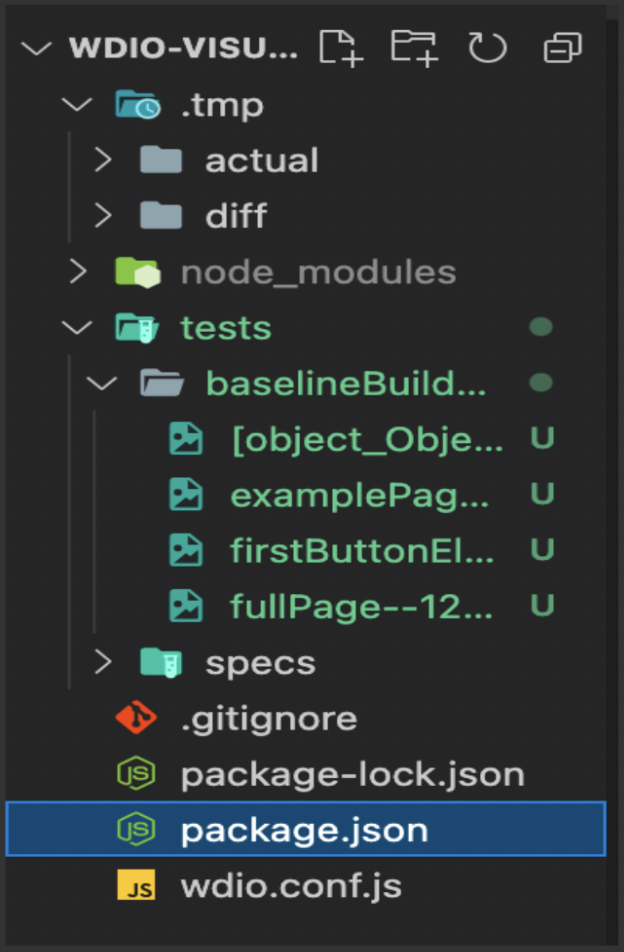
Baseline images are saved in the folder named baselineBuild. The test executed images are captured in .tmp folder which contains both actual and diff folders which compare the actual and different images.
Using Percy tool for Visual Testing
Percy by BrowserStack is visual testing as a service platform. Percy.io enables you to review visual changes in your application and offers a toolkit for you to get started with visual testing in whatever framework you are using.
Setup
- Ensure you have Node.js installed in your computer
- Ensure to have WebdriverIO installed.
- Run the following command from your root work directory to install Percy.
npm install --save-dev @percy/cli @percy/webdriverio
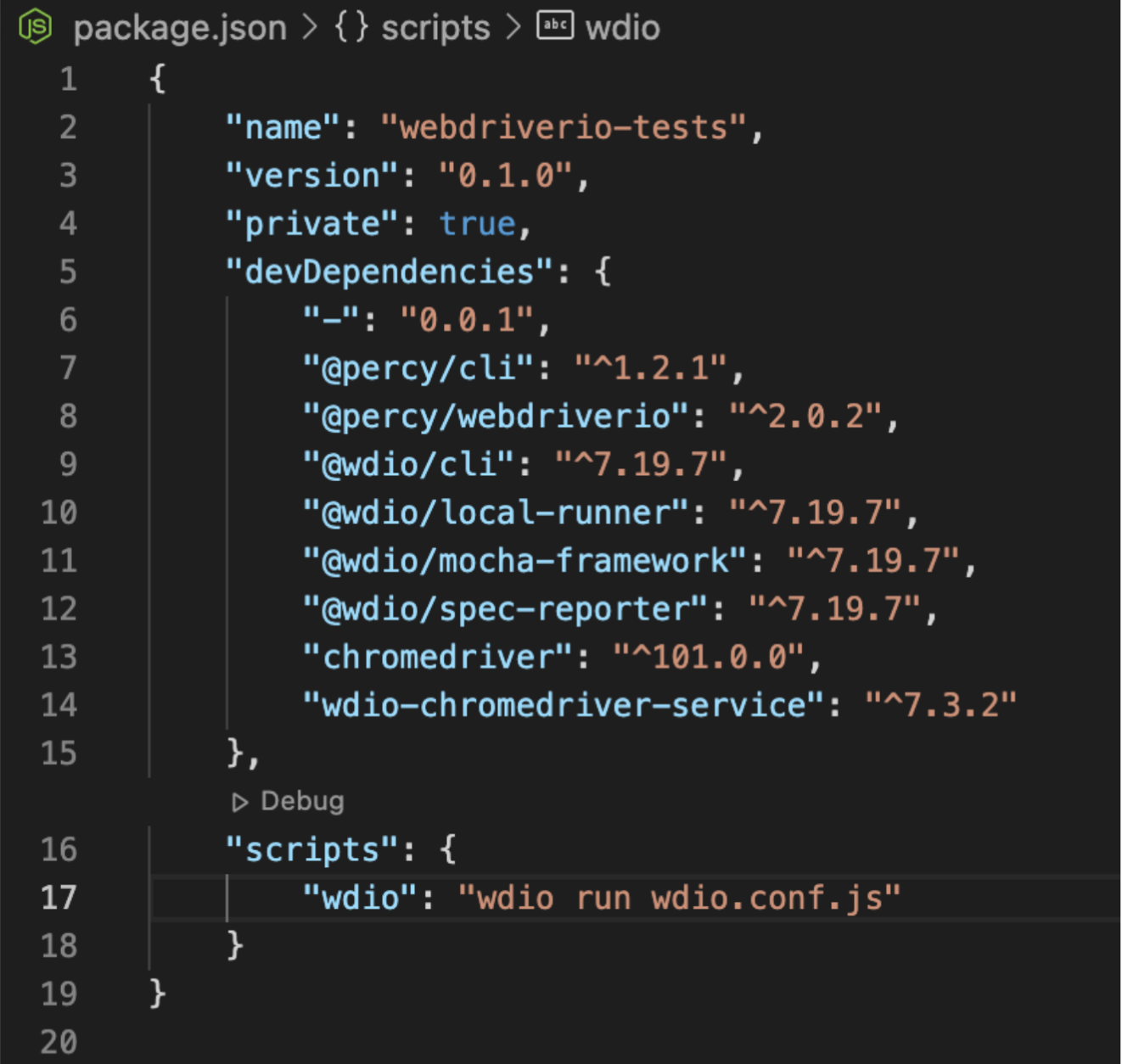
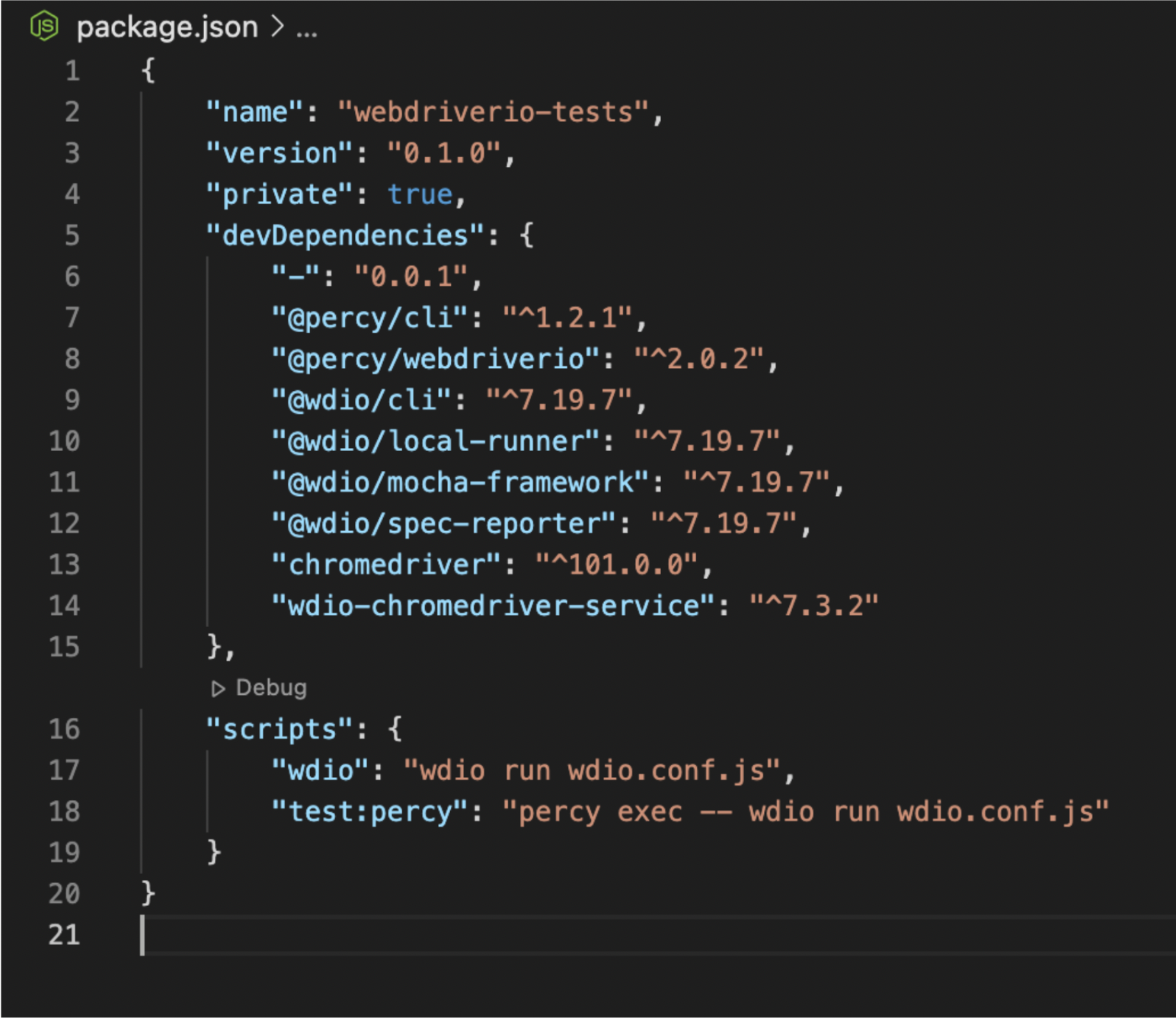
After installing all the packages, your package.json should be something like this.
Performing Visual Regression Testing using WebdriverIO and Percy
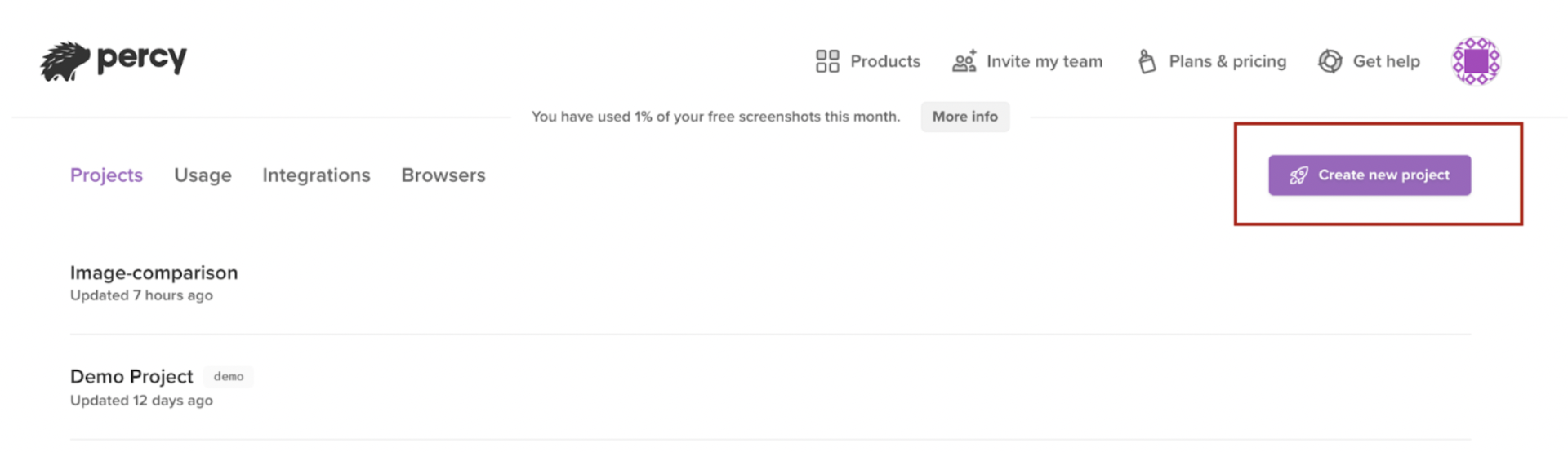
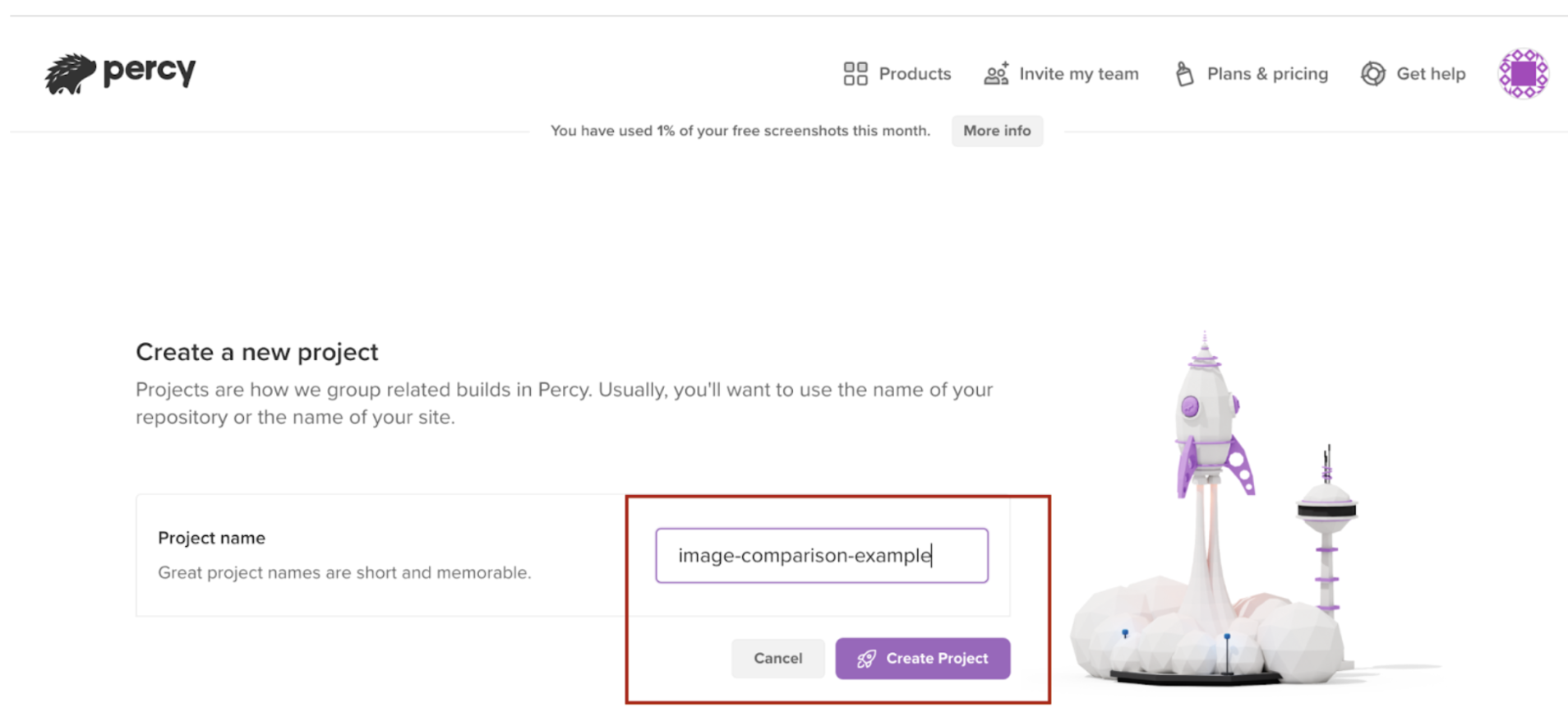
To begin with, we need to create a project in Percy. After logging in with Percy, click on the Create Project and enter the project name.
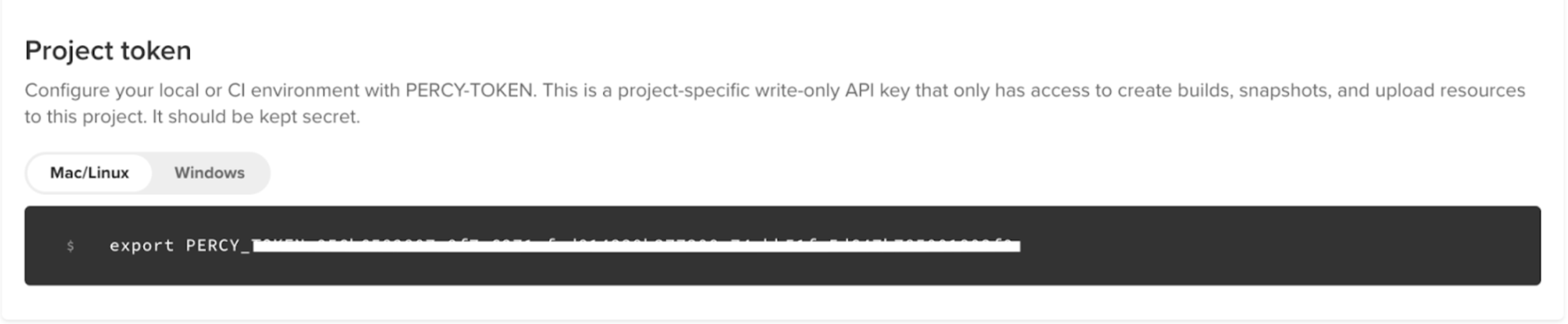
Once you create the project, you will land on the project dashboard. You will see a unique project token generated. Pass the token in your terminal to integrate the project with Percy.
Writing Tests with Percy
Now, let’s write our test case to compare the screenshots with Percy.
const percySnapshot = require("@percy/webdriverio");

describe('webdriver.io page', () => {
it('should have the right title', async () => {
await browser.url('https://webdriver.io');
await expect(browser).toHaveTitle('WebdriverIO · Next-gen browser and mobile automation test framework for Node.js | WebdriverIO');
await percySnapshot(browser, 'webdriver.io page');
});
});
Initially, we need to require Percy in our test file. We are writing our test case using Mocha with describe and it block. We are navigating to the WebdriverIO URL and expecting the title to have WebdriverIO. With the percySnapshot command, we are capturing the screenshot. percySnapshot accepts three arguments.
percySnapshot(browser, <snapshotName>, <options>)
Running the Test
Now, let us run our Percy test case. For it, we need to configure the command in our package.json file. Add this command under scripts.
"test:percy": "percy exec -- wdio run wdio.conf.js"
To run the test, pass npm run test:percy command in your terminal. Once you run the test, you should see the Percy running command and generate a link to the Percy.
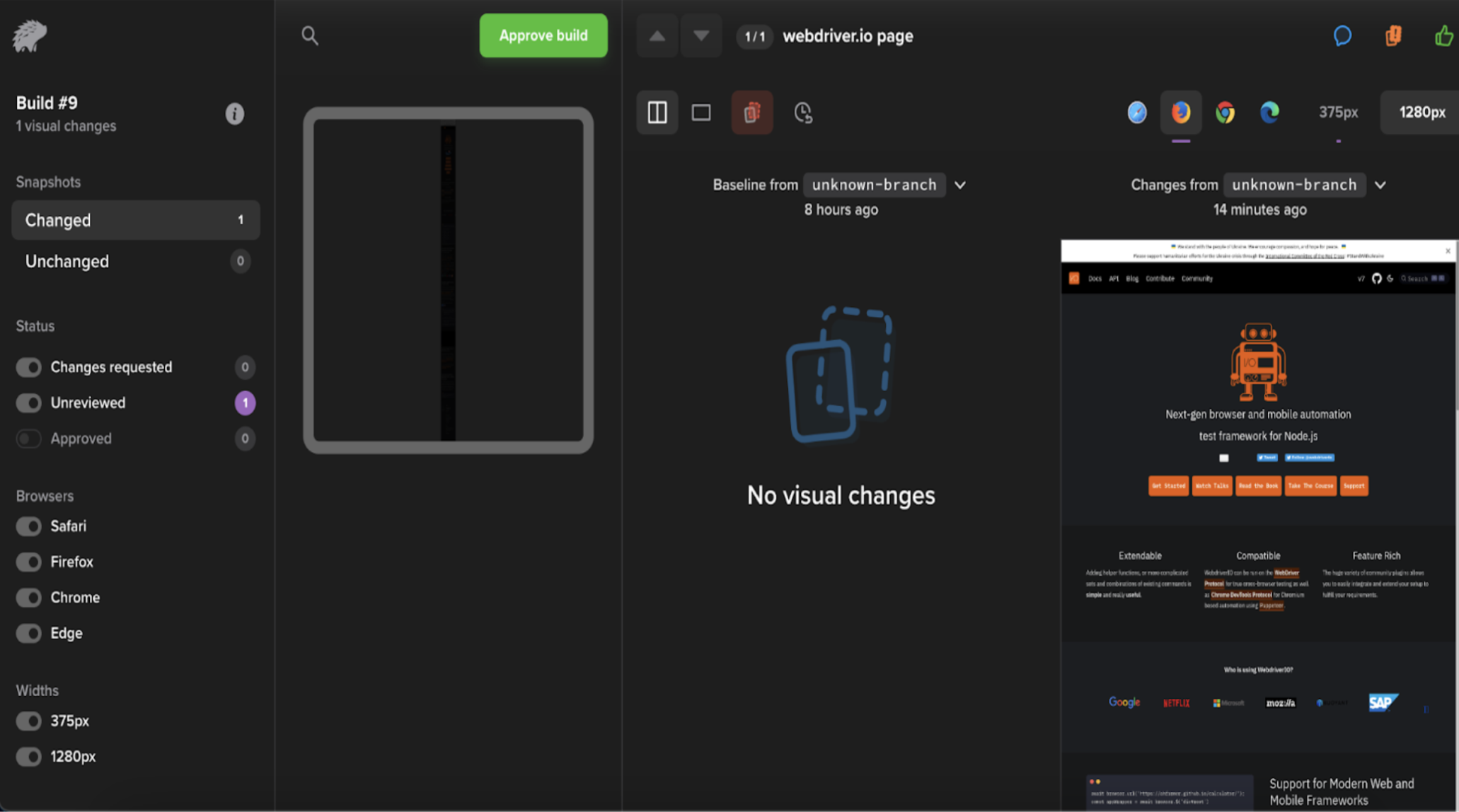
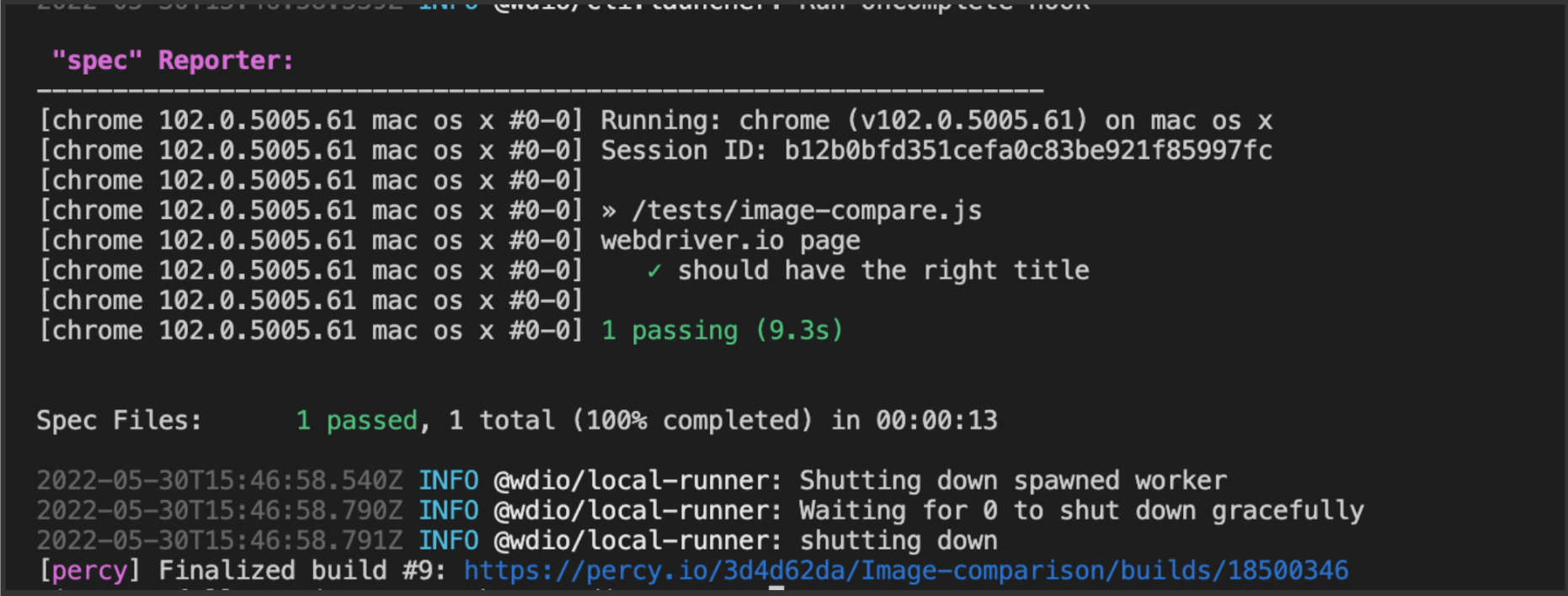 In the above screen, you can see a link (Finalized build #9) has been generated. When you open the link in the browser, you can see the snapshot of the test in the Percy dashboard. It should look something like this.
Why Use Percy for Visual Regression Testing
Percy by BrowserStack improves visual regression testing in WebdriverIO by adding AI-driven accuracy, reliable change detection, and streamlined collaboration across teams. It enhances the traditional screenshot comparison workflow by reducing false positives and providing clear insight into every visual update.
- Effortless Visual Regression Testing: Percy integrates easily into CI/CD pipelines and works with functional test suites, Storybook, and Figma. It supports early visual validation to help teams identify issues before they reach production.
- Automated Visual Regression: Percy captures screenshots on every commit and compares them with existing baselines. It flags layout shifts, style changes, and component issues so teams can review updates with confidence.
- Visual AI Engine: The Visual AI Engine filters out noise from dynamic banners, animations, and other unstable elements. Intelli Ignore and OCR help Percy focus on meaningful changes that matter for user experience and reduce false positives.
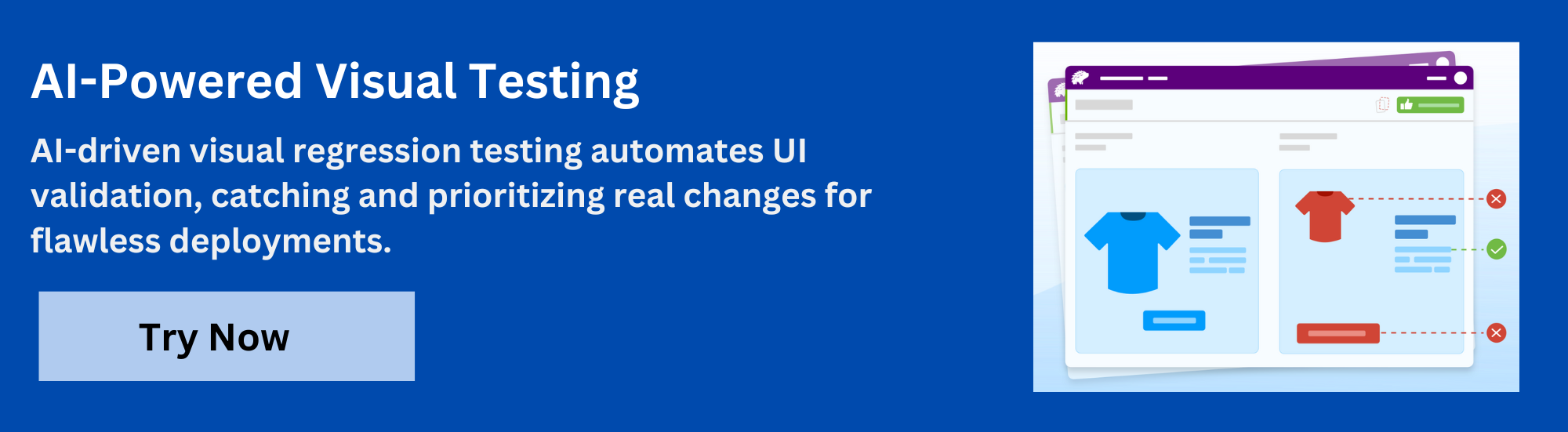
- Visual Review Agent: Percy highlights important changes with bounding boxes and provides clear summaries. This improves review speed and reduces the time spent validating visual updates.
- No Code Visual Monitoring: Visual Scanner enables rapid setup without installation. It scans and monitors large sets of URLs across many browsers and devices. It supports scheduled scans, region-based ignores, and environment comparisons.
- Flexible and Comprehensive Monitoring: Percy supports hourly, daily, weekly, or monthly monitoring. It works with authenticated pages, local testing workflows, and environment comparisons to help teams detect issues before release.
- Broad Integrations: Percy integrates with major frameworks and CI tools. Its SDKs support quick onboarding and allow teams to scale visual testing with ease.
Pricing Details for Percy:
- Free Plan: Available with up to 5,000 screenshots per month, ideal for getting started or for small projects.
- Paid Plan: Starting at $199 for advanced features, with custom pricing available for enterprise plan.
Differences in running with WebDriverIO only vs WebDriverIO + Percy
Now, we saw how to perform Visual testing using WebdriverIO and Percy. We’ll compare both the services to understand how they are useful in Visual testing.
WebdriverIO for Visual Regression Testing
Pros
- Service is maintained actively
- Open-source
- Feature-rich (Allows customized testing types)
- Backed by OpenJS Foundation
Cons
- Requires external boilerplate for StoryBook
- The reporting for the WebdriverIO image comparison service is not very clear and it might be difficult to identify the actual and different results.
WebDriverIO + Percy for Visual Regression Testing
Pros
- Actively maintained and updated
- Easy Storybook compatibility
- Owned by BrowserStack
- Compatible with several testing frameworks like Selenium, Cypress, WebdriverIO, NightWatch, NightmareJS, Puppeteer, and many more.
- Clear and excellent reporting ( easy to compare the actual and different results)
- Cross-browser visual testing
Cons
- It is quite expensive when we opt for business-level enterprise
Conclusion
In conclusion, visual regression testing plays a crucial role in ensuring the quality and consistency of web applications. Tools like WebDriverIO and Percy make it easier to automate these tests, helping to catch UI issues early on. WebDriverIO, with its wdio-image-comparison-service offers a flexible solution for integrating visual testing within your existing automation setup. Meanwhile, Percy provides a powerful, scalable tool with seamless integration into CI/CD pipelines, cross-browser support, and advanced comparison features.
By incorporating these tools into your workflow, you can reduce the chances of visual bugs making their way into production, improve team collaboration, and ensure a consistent user experience.
Try Visual Regression Testing on Percy
Useful Resources for Visual Testing
- How to capture Lazy Loading Images for Visual Regression Testing in Cypress
- How to Perform Visual Testing for Components in Cypress
- How to run your first Visual Test with Cypress
- How Visual Diff Algorithm improves Visual Testing
- How is Visual Test Automation changing the Software Development Landscape?
- How does Visual Testing help Teams deploy faster?
- How to perform Visual Testing for React Apps
- How to Run Visual Tests with Selenium: Tutorial
- How to reduce False Positives in Visual Testing?
- How to capture Lazy Loading Images for Visual Regression Testing in Puppeteer
- How to migrate your Visual Testing Project to Percy CLI
- Why is Visual Testing Essential for Enterprises?
- Importance of Screenshot Stabilization in Visual Testing
- Strategies to Optimize Visual Testing
- Best Practices for Visual Testing
- Visual Testing Definitions You Should Know
- Visual Testing To Optimize eCommerce Conversions
- Automate Visual Tests on Browsers without Web Drivers
- Appium Visual Testing: The Essential Guide
- Top 17 Visual Testing Tools
Frequently Asked Questions
1. How does visual regression testing differ from functional testing in WebdriverIO?
Functional tests validate whether an application behaves correctly. Visual regression tests focus on how the UI looks. They detect layout shifts, styling issues, and visual defects that functional tests often miss.
2. When should I use visual regression testing in a WebdriverIO project?
Visual regression testing is useful when an application undergoes frequent UI changes or supports multiple browsers and devices. It helps maintain consistent design quality and prevents unintended visual updates from reaching production.
3.How do I manage and update baseline images in WebdriverIO?
Baseline images should be stored in version control so teams can track intentional UI changes. When design updates are approved, running the tests again generates new baselines that replace the older ones.

 Featured Article


