Mobile apps today are increasingly diverse, offering unique features and experiences. Many apps behave differently in portrait and landscape modes, impacting usability and user experience. Manual testing for these orientations can be cumbersome, especially for complex apps. Automated testing using Appium simplifies this process and ensures consistent behavior across devices. Integrating with a real device cloud, like BrowserStack, allows testing on multiple real Android and iOS devices without investing in physical hardware.
Overview
Why Orientation Testing Matters
- Portrait = default; Landscape = horizontal.
- User experience depends on app type: OTT apps → landscape; food/cab apps → portrait.
- Orientation impacts visible screen dimensions and usability.
Manual vs Automated Orientation Testing
- Manual: lock/unlock device orientation → switch portrait/landscape.
- Automated: Appium + code → rotate screens programmatically, scalable across features and devices.
Orientation Testing Methods using Appium
Method 1 → Set orientation before test execution
- Use DesiredCapabilities to define deviceOrientation as LANDSCAPE or PORTRAIT.
- App launches in specified orientation automatically.
Method 2 → Change orientation during test execution
- Use driver.rotate(ScreenOrientation.LANDSCAPE) or PORTRAIT.
- Can dynamically test multiple orientations in a single test session.
This guide explains how to test mobile apps in landscape and portrait orientations using Appium, both locally and on BrowserStack’s real device cloud.
Testing Mobile Apps in Landscape and Portrait mode using Appium
Manual testing of mobile apps in Landscape and Portrait modes is easier, since you have to simply switch these modes by locking/unlocking the “screen-orientation button” on the mobile device. Then hold the device horizontally/vertically which then automatically takes care of the desired orientation mode of the screen.
However, for more number of features, testing each of them for landscape and portrait modes manually is cumbersome. Hence, test automation using Appium is required in such cases. To perform Automated Testing of Landscape and Portrait mode in Appium, there are two ways provided by Appium which can be utilized.
Prerequisites
- Appium desktop client
- Android Studio
- JDK
- Development IDE/Eclipse
Make sure you have all software installed and running in your system.
In this example, we will use the ‘Youtube’ Android App to test Landscape and Portrait Modes in Appium.
Method 1 By adding the capability for screen orientation before the test execution
package testing;
import org.testng.annotations.Test;
import org.openqa.selenium.remote.DesiredCapabilities;
import io.appium.java_client.android.AndroidDriver;
import java.net.URL;
import java.util.concurrent.TimeUnit;
import org.openqa.selenium.ScreenOrientation;
public class Switchorientation {


@Test
public void test() {
try {
DesiredCapabilities caps = new DesiredCapabilities();
caps.setCapability("deviceName", "My Device"); //Give your device/emulator name
caps.setCapability("udid", "emulator-5554"); // Go to adb location i.e. C:\Users\singe\AppData\Local\Android\Sdk\platform-tools in command prompt and execute ‘adb devices’ to get udid
caps.setCapability("platformVersion", "8.1.0"); //Give android version of your device. (Check ‘about phone’ section)
caps.setCapability("appPackage", "com.google.android.youtube"); //provide app package name. Apkinfo can be used or execute dumpsys window windows | grep -E ‘mCurrentFocus’ command in adb shell in cmd in C:\Users\singe\AppData\Local\Android\Sdk\platform-tools
caps.setCapability("appActivity", "com.google.android.apps.youtube.app.WatchWhileActivity");
caps.setCapability("orientation", "LANDSCAPE");
AndroidDriver driver = new AndroidDriver(new URL("http://127.0.0.1:4723/wd/hub"), caps); //Create driver object
driver.manage().timeouts().implicitlyWait(10, TimeUnit.SECONDS); //Implicit wait of 10 seconds

driver.quit();

} catch (Exception e) {
// TODO Auto-generated catch block
e.printStackTrace();
}

}
}
Method 2 By using “ScreenOrientation” method during the test execution
package testing;
import org.testng.annotations.Test;
import org.openqa.selenium.remote.DesiredCapabilities;
import io.appium.java_client.android.AndroidDriver;
import java.net.URL;
import java.util.concurrent.TimeUnit;
import org.openqa.selenium.ScreenOrientation;
public class Switchorientation {


@Test
public void test() {
try {
DesiredCapabilities caps = new DesiredCapabilities();
caps.setCapability("deviceName", "My Device");
caps.setCapability("udid", "emulator-5554");
caps.setCapability("platformVersion", "8.1.0");
caps.setCapability("appPackage", "com.google.android.youtube");
caps.setCapability("appActivity", "com.google.android.apps.youtube.app.WatchWhileActivity");
AndroidDriver driver = new AndroidDriver(new URL("http://127.0.0.1:4723/wd/hub"), caps);
driver.manage().timeouts().implicitlyWait(10, TimeUnit.SECONDS);
ScreenOrientation orientation=driver.getOrientation();

System.out.println("Currentorientation:"+orientation);
driver.rotate(ScreenOrientation.LANDSCAPE);
Thread.sleep(5000);

driver.quit();

} catch (Exception e) {
// TODO Auto-generated catch block
e.printStackTrace();
}

}
}
By following the above example, you can easily change the screen orientation of your device using Appium. For accurate results, it’s advisable to make use of cross-platform testing tools and increase test coverage by a hundred times by testing your app on multiple versions of operating systems and different Android and iOS devices. Real Device Cloud, like BrowserStack, provides this platform where you can integrate your Appium tests with thousands of available real devices using App Automate.
Run Appium Tests on Real Devices
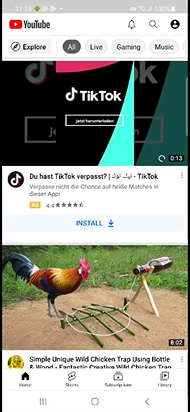
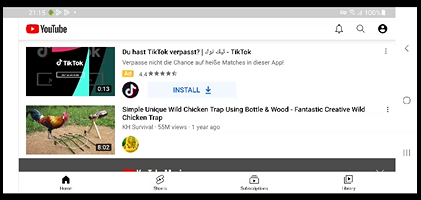
Testing Landscape and Portrait Modes on Real Devices using Appium with BrowserStack
To integrate with BrowserStack, upload the app being tested and follow the subsequent steps to get the app url.
Method 1 By adding the capability for screen orientation before the test execution
After integration with BrowserStack App Automate, the code will look like the below:
package testing;
import java.net.URL;
import java.util.List;
import java.util.function.Function;
import java.net.MalformedURLException;
import io.appium.java_client.MobileBy;
import io.appium.java_client.android.AndroidDriver;
import io.appium.java_client.android.AndroidElement;
import org.openqa.selenium.support.ui.ExpectedConditions;
import org.openqa.selenium.support.ui.WebDriverWait;
import org.openqa.selenium.ScreenOrientation;
import org.openqa.selenium.WebDriver;
import org.openqa.selenium.remote.DesiredCapabilities;
import org.testng.annotations.Test;

public class BrowserStack {

public static void main(String[] args) throws MalformedURLException, InterruptedException {

DesiredCapabilities caps = new DesiredCapabilities();

// Set your access credentials
caps.setCapability("browserstack.user”, <user-name>);
caps.setCapability("browserstack.key", <access-key>);
// Set URL of the application under test
caps.setCapability("app", "bs://9cc026f23e20d659e525a052e5fdbbe4fea33c24");

// Specify device and os_version for testing
caps.setCapability("device","Samsung Galaxy A52");
caps.setCapability("os_version", "11.0");

// Set other BrowserStack capabilities
caps.setCapability("project", "First Java Project");
caps.setCapability("build", "browserstack-build-1");
caps.setCapability("name", "first_test");
caps.setCapability("deviceOrientation", "landscape");
// Initialize the remote Webdriver using BrowserStack remote URL
// and desired capabilities defined above
AndroidDriver<AndroidElement> driver = new AndroidDriver<AndroidElement>(
new URL("http://hub.browserstack.com/wd/hub"), caps);

Thread.sleep(5000);


// Invoke driver.quit() after the test is done to quit the window session.
driver.quit();

}
}
Method 2 By using “ScreenOrientation” method during the test execution
package testing;
import java.net.URL;
import java.util.List;
import java.util.function.Function;
import java.net.MalformedURLException;
import io.appium.java_client.MobileBy;
import io.appium.java_client.android.AndroidDriver;
import io.appium.java_client.android.AndroidElement;
import org.openqa.selenium.support.ui.ExpectedConditions;
import org.openqa.selenium.support.ui.WebDriverWait;
import org.openqa.selenium.ScreenOrientation;
import org.openqa.selenium.WebDriver;
import org.openqa.selenium.remote.DesiredCapabilities;
import org.testng.annotations.Test;

public class BrowserStack {

public static void main(String[] args) throws MalformedURLException, InterruptedException {

DesiredCapabilities caps = new DesiredCapabilities();

// Set your access credentials
caps.setCapability("browserstack.user", "apekshagupta_ZFOdov");
caps.setCapability("browserstack.key", "PXpX6gUdTp68RMeQFLGM");

// Set URL of the application under test
caps.setCapability("app", "bs://9cc026f23e20d659e525a052e5fdbbe4fea33c24");
// Specify device and os_version for testing
caps.setCapability("device", "Samsung Galaxy A52");
caps.setCapability("os_version", "11.0");

// Set other BrowserStack capabilities
caps.setCapability("project", "First Java Project");
caps.setCapability("build", "browserstack-build-1");
caps.setCapability("name", "first_test");
// Initialise the remote Webdriver using BrowserStack remote URL
// and desired capabilities defined above
AndroidDriver<AndroidElement> driver = new AndroidDriver<AndroidElement>(
new URL("http://hub.browserstack.com/wd/hub"), caps);

ScreenOrientation orientation=driver.getOrientation();
driver.rotate(ScreenOrientation.LANDSCAPE);
Thread.sleep(5000);


// Invoke driver.quit() fter the test is done to quit the window session.
driver.quit();

}
}
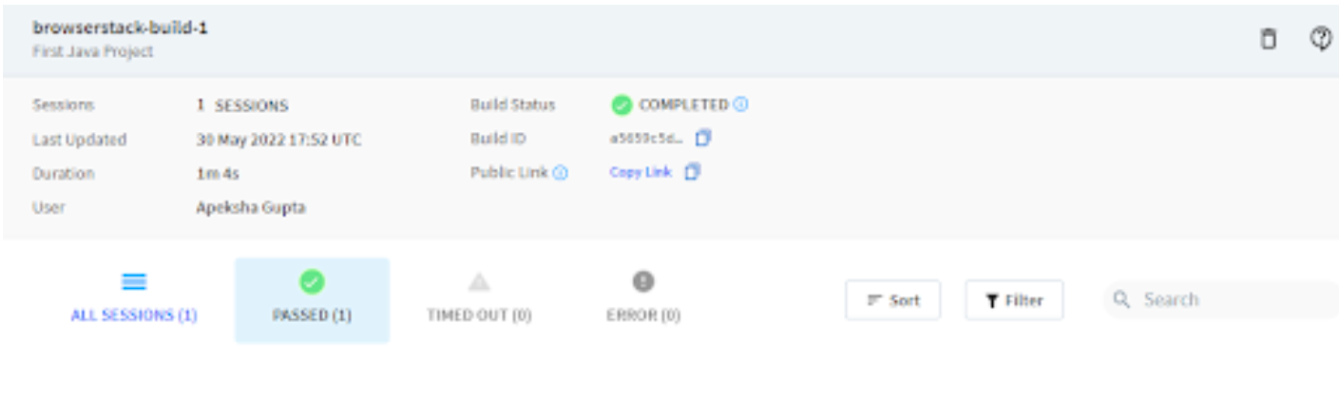
Test Results
Video Log
Test results can be viewed on App Automate Dashboard once the test execution is completed. For any kind of test, results play a key role in debugging and delivering a bug-free user experience. Using BrowserStack App Automate for testing not only allows you access to thousands of real devices across different platforms but also helps you debug easier with a dedicated dashboard to check test results, text, console, and video logs along with the screenshots.
Clicking on individual tests will give you a detailed report for each test including steps, text logs, Appium logs, execution video logs, and other details for better debugging of failed tests. With BrowserStack App Automate you can not only check your test results but share with your team on Slack, Jira, Trello, or GitHub for better collaboration and debugging.
 Featured Article



