

Visual Testing, also known as Visual Validation or Visual Regression Testing, is one of the most effective ways to verify the user interface of a software application. It identifies visual defects caused by incorrect styles, misaligned elements, or inconsistent fonts. It highlights the differences by comparing two snapshots pixel-by-pixel, which may impact the overall UI experience.
Overview
What Is a False Positive in Visual Validation Testing?
A visual testing false positive occurs when a regression test flags a difference between the baseline and current UI, even though the change isn’t a real defect. These are expected, harmless variations that the tool mistakenly identifies as issues.
Strategies to Reduce Visual Testing False Positives
- Mask or ignore dynamic content: Exclude or hide areas that naturally change between runs.
- Adjust visual tolerances: Allow minor differences by configuring appropriate threshold settings.
- Leverage AI-powered visual testing tools: These offer smarter comparisons that distinguish real regressions from cosmetic noise.
- Keep baselines updated: Refresh baseline snapshots whenever approved UI changes are made.
- Ensure content consistency: Synchronize data or states across environments to reduce unexpected variations.
- Prioritize key user flows: Focus visual testing on high-impact screens where regressions matter most.
This guide walks through practical ways to reduce visual testing false positive failures and achieve more stable results.
What is a False Positive in Visual Validation Testing?
A false positive in visual validation testing occurs when a test flags a visual issue even though the user interface appears correct and works as intended. In that scenario the testing tool reports a defect, however, there is no actual bug in the UI. That kind of mismatch affects confidence in test results and can undermine the value of visual validation.
A true positive is any real, user-impacting visual defect that the testing system correctly detects, such as, layout misalignment, broken styling, wrong fonts or broken rendering. False positives, on the other hand, are incorrect alerts that waste time and attention. It is very important to make a clear distinction between true positives and false positives, to maintain the efficiency and reliability of testing.
If false positives go unchecked, teams end up chasing phantom defects. That leads to unnecessary remediation work or unwanted re-baselining of snapshots. It also erodes trust in the visual testing process, making teams more likely to ignore genuine issues. Recognizing and minimizing false positives helps preserve resources, focus efforts where they matter, and keep the visual testing pipeline effective and credible.
Reasons for False Positives in Visual Testing
There are many false positives, such as dynamic content, animations, lazy loading, or even glitches in the webpage UI that may cause false positives.
False Positives Reasons
- Dynamic Content
- Animations
- GIFs
- Autoplay Videos
Some of the most common reasons for false positives in visual testing are:
1. Dynamic Content
Every web application generally will have dynamic content, for example, time, date, graphs, temperature, etc. These dynamic data changes from time to time. Even though the dynamic content is displayed as expected since the visual test compares the screenshots pixel by pixel, the visual diff tool marks this as an error.
2. Animations
Generally, web applications contain animation effects to make UI smoother and prettier which can cause false positives during visual testing. One example is the loading icon. The loading icon continuously rotates until the page loads, there will be a minor difference in the loading icon in each millisecond as it rotates.
So when two screenshots are compared the minor differences are marked as an error but the behavior was expected.
3. GIFs
There will always be movement in GIF images, when you compare the baseline screenshot with the recent screenshot you can observe some difference, as while taking the screenshots there will be a minor delay.

Image courtesy: Tenor
In the GIF above image, the baby claps continuously. The first time when you take a screenshot it captures the below image.

Next time when you run the test there might be a small movement in the GIF image and captures that screenshot as the actual image

When the Visual Testing algorithm compares these two screenshots it finds the image as different and throws a major difference in the screenshot. As you can see in the below image, the differences are highlighted in red by the visual diff algorithm.

4. Autoplay Videos
Autoplay videos can also cause false positives, As the frames in the video may change every millisecond.
How to reduce the False positives in Visual Validation Testing
The false positives make the testing unreliable. To overcome this challenge nowadays many tools are improving their algorithms. False positives can be handled to some extent in any tool. In the following sections, we will be using Percy and Cypress for code snippets as it is one of the most commonly used tools in the industry.
Consider the demo dynamic content website, where it displays some random texts dynamically.
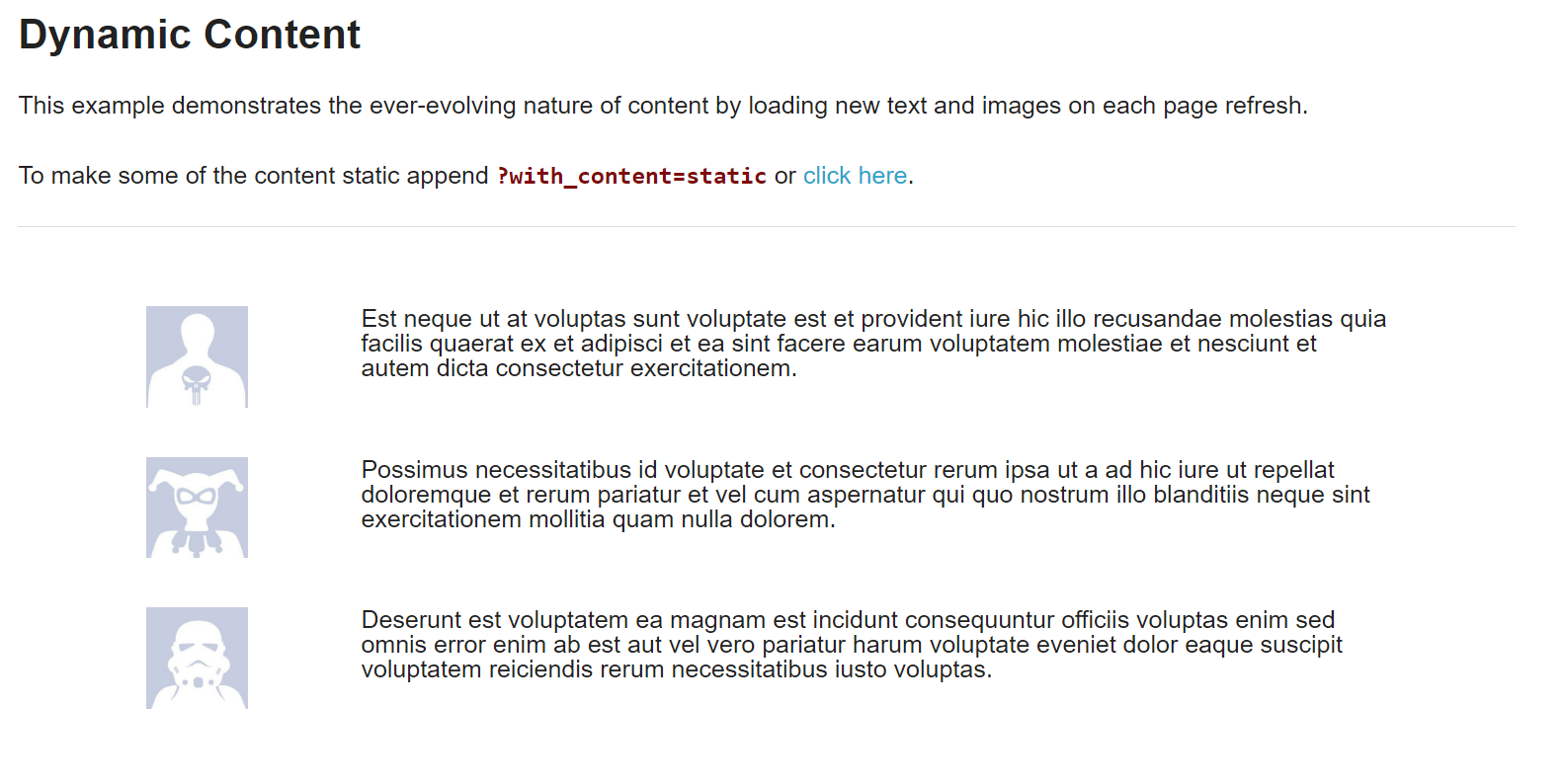
Courtesy: the-internet.herokuapp.com
When you run the visual tests since the contents are always dynamic the visual test always fails. There are multiple options to fix this issue.
Handling Dynamic Content False Positives in Visual Testing
To handle dynamic content false positives in visual testing, use tolerance settings, capture multiple screen variations, incorporate delay timings, and leverage advanced algorithms for image comparison, ensuring accuracy across dynamic elements.
Handling Content False Positives
- Ignore/Hide the Dynamic Content
- Mock (Fake) the response
- Changing CSS styles
- Sensitivity Settings
1. Ignore/Hide the Dynamic Content
Percy provides an option to hide the dynamic content on the web page, so while performing the visual test the dynamic content will be ignored. It also hides the dynamic content by specifying the percyCSS option inside the percySnapshot() function
Percy Cypress Syntax to hide the content on the webpage:
cy.percySnapshot('<Title>',{
percyCSS:`#dynamicContentID {display:none }`
});
The above solution may not be useful in some use cases, if your website contains many dynamic contents, if you hide all the dynamic content then there will be nothing to test. In such case, you can use other alternatives
2. Mock (Fake) the response
There are many tools and plugins that help you to mock the request and response. Cypress, Postman, faker, etc are some examples. Using these tools you can mock the API response and convert it into static data.
For example, if you are using Cypress you can simply mock the API request using cy.intercept() function.
cy.intercept('GET', 'http://the-internet.herokuapp.com/dynamic_content', { fixture: 'mocked_response.html' })
cy.visit("http://the-internet.herokuapp.com/dynamic_content");
cy.percySnapshot('Dynamic Data')
mocked_response.html
<!DOCTYPE html>
<!--[if IE 8]> <html class="no-js lt-ie9" lang="en" > <![endif]-->
<!--[if gt IE 8]><!--> <html class="no-js" lang="en" > <!--<![endif]-->

<html>
<head>
<script src="/js/vendor/298279967.js"></script>
<meta charset="utf-8" />
<meta name="viewport" content="width=device-width" />
<title>The Internet</title>
<link href="/css/app.css" rel="stylesheet">
<link href="/css/font-awesome.css" rel="stylesheet">
<script src="/js/vendor/jquery-1.11.3.min.js"></script>
<script src="/js/vendor/jquery-ui-1.11.4/jquery-ui.js"></script>
<script src="/js/foundation/foundation.js"></script>
<script src="/js/foundation/foundation.alerts.js"></script>
<script>
$(document).foundation();
</script>
</head>
<body>
<div class="row">
<div id="flash-messages" class="large-12 columns">

</div>
</div>
<div class="row">
<a href="https://github.com/tourdedave/the-internet"><img style="position: absolute; top: 0; right: 0; border: 0;" src="/img/forkme_right_green_007200.png" alt="Fork me on GitHub"></a>
<div id="content" class="large-12 columns">
<style>
.example img {
width: 82px;
height: 82px;
}
</style>

<div class='example'>
<h3>Dynamic Content</h3>
<p>This example demonstrates the ever-evolving nature of content by loading new text and images on each page refresh.</p>
<p>To make some of the content static append <code>?with_content=static</code> or <a href='/dynamic_content?with_content=static'>click here</a>.</p>

<hr>
</br>
</br>

<div class='row'>
<div id='content' class='large-10 columns large-centered'>

<div class='row'>
<div class='large-2 columns'>
<img src='/img/avatars/Original-Facebook-Geek-Profile-Avatar-3.jpg'>
</div>
<div class='large-10 columns'>
This is mocked static response, This doesn't change anytime
</div>
</div></br></br>

<div class='row'>
<div class='large-2 columns'>
<img src='/img/avatars/Original-Facebook-Geek-Profile-Avatar-7.jpg'>
</div>
<div class='large-10 columns'>
Possimus necessitatibus id voluptate et consectetur rerum ipsa ut a ad hic iure ut repellat doloremque et rerum pariatur et vel cum aspernatur qui quo nostrum illo blanditiis neque sint exercitationem mollitia quam nulla dolorem.
</div>
</div></br></br>

<div class='row'>
<div class='large-2 columns'>
<img src='/img/avatars/Original-Facebook-Geek-Profile-Avatar-6.jpg'>
</div>
<div class='large-10 columns'>
Deserunt est voluptatem ea magnam est incidunt consequuntur officiis voluptas enim sed omnis error enim ab est aut vel vero pariatur harum voluptate eveniet dolor eaque suscipit voluptatem reiciendis rerum necessitatibus iusto voluptas.
</div>
</div></br></br>

</div>
</div>

</div>

</div>
</div>
<div id='page-footer' class="row">
<div class="large-4 large-centered columns">
<hr>
<div style="text-align: center;">Powered by <a target="_blank" href="http://elementalselenium.com/">Elemental Selenium</a></div>
</div>
</div>
</body>
</html>
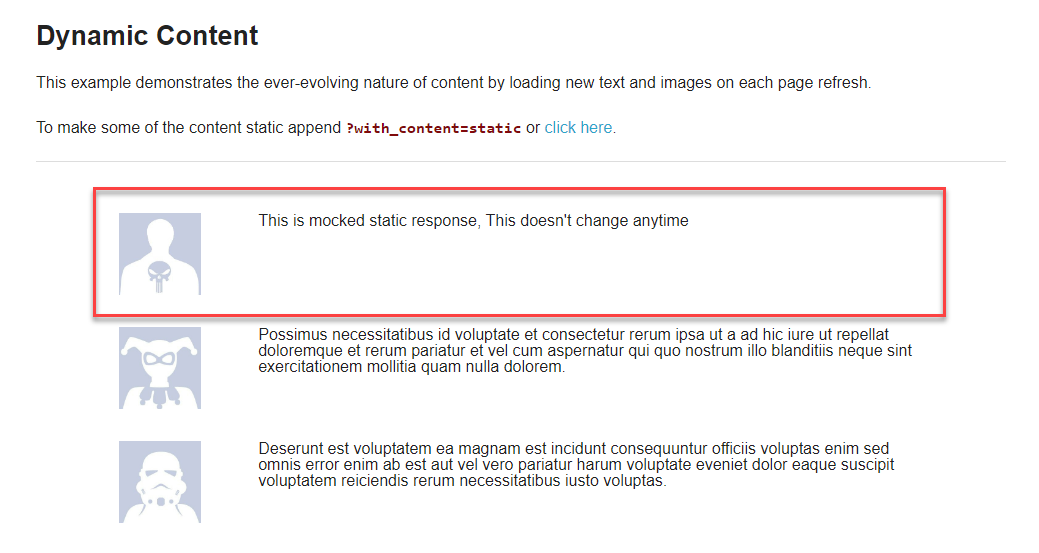
In the above code, you can see we are replacing the dynamic content API with our own static content which is stored in the mocked_response.html
When you execute the code it looks like below
Setting Inner Text using JavaScript
 Setting Inner Text using JavaScript
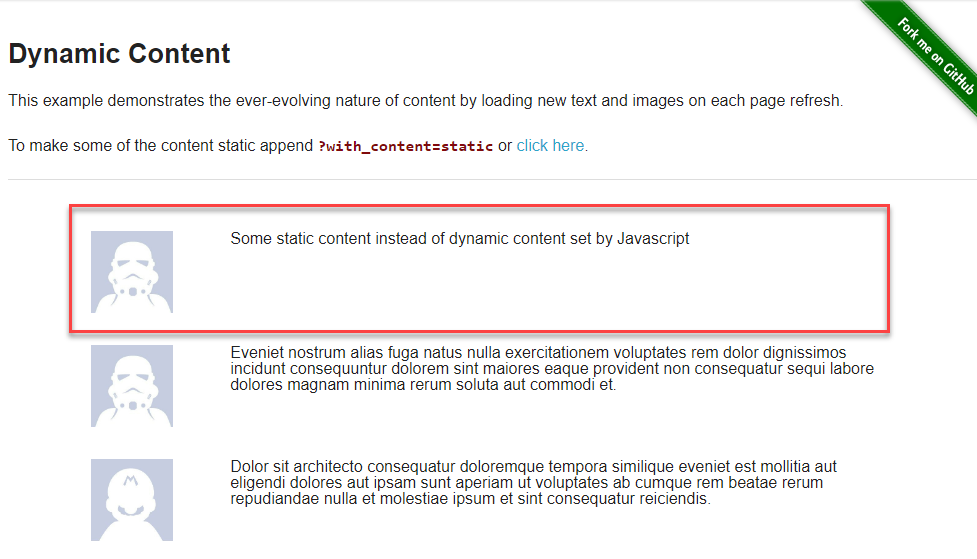
Many automation tools allow us to change the inner text content of the element by using simple javascript functions. This doesn’t require any complicated setup. The Javascript inner text is the best way when you have only a few dynamic elements.
For example, in Cypress, we can set the dynamic content as below
 cy.visit("http://the-internet.herokuapp.com/dynamic_content");
 cy.window().then((win) => {
win.eval('document.querySelector("div#content > div > div > div > div > div:nth-child(2)").innerText ="Some static content instead of dynamic content set by Javascript"');
});
})
3. Changing CSS styles
The false positive can be because of some margins, or dynamic colors, or there may be scenarios where styles are set dynamically as these are essential for the website to run smoothly but for visual testing, this will be the problem and it causes the false positive.
Many popular tools provide the option to change the CSS styles before taking screenshots for comparison.
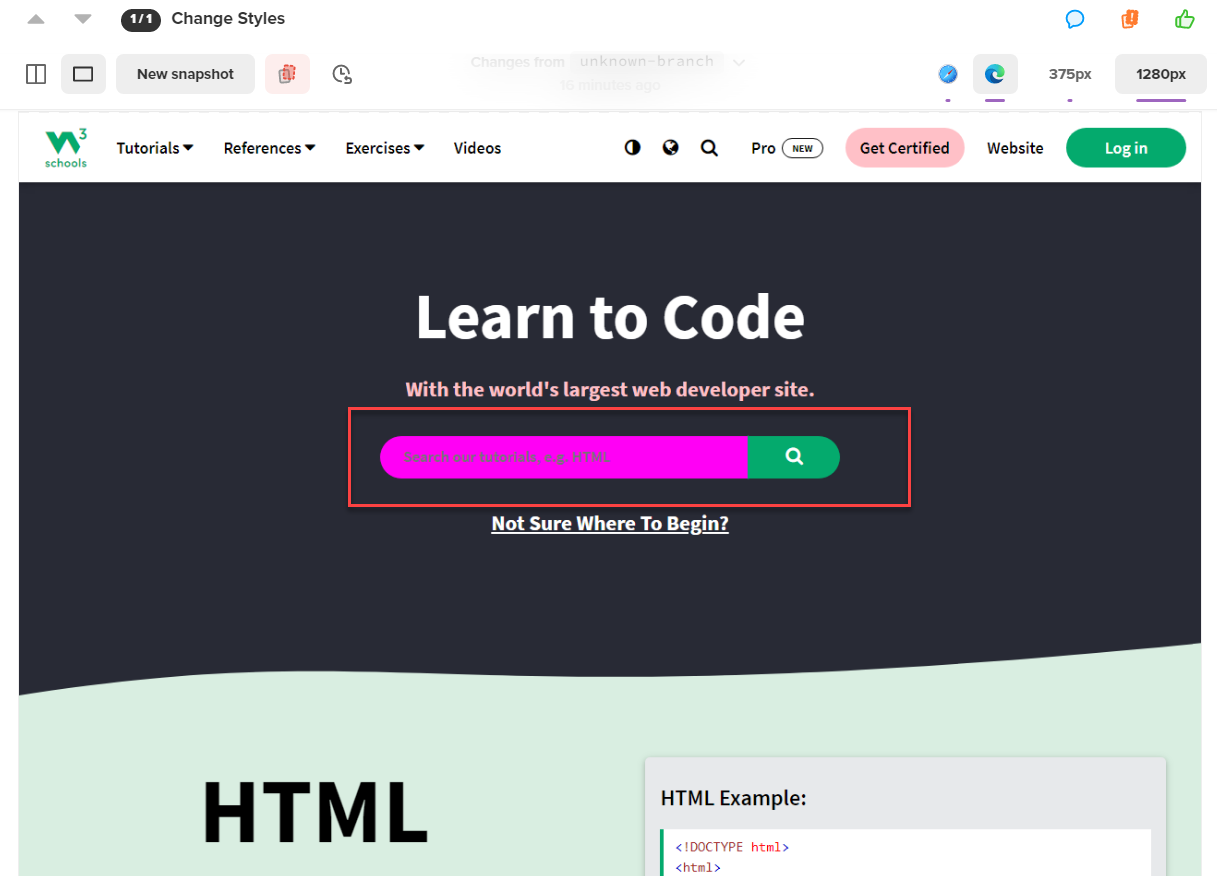
Example: Percy customization of styles
cy.visit("https://www.w3schools.com/");
cy.percySnapshot('Change Styles',{
percyCSS:`#search2 {background:#ff00f5}`
});
The above code changes the background color to #ff00f5 for the element having id search2 before taking the screenshot.
The above is just an example, you can do a lot more changes just by modifying the CSS styles which helps to handle the dynamic changes and reduces the false positives.
Must-Read: Quick CSS Selectors Cheat Sheet
4. Sensitivity Settings
The sensitivity is the comparison level of screenshots, the sensitivity settings usually provide an option like strict, recommended, and relaxed. Strict mode usually checks in a detailed way. The relaxed option ignores if there are minor differences.
In Percy, you can see these options in Project Settings.
Navigate to Project Settings > Look for Advanced Options > Diff sensitivity
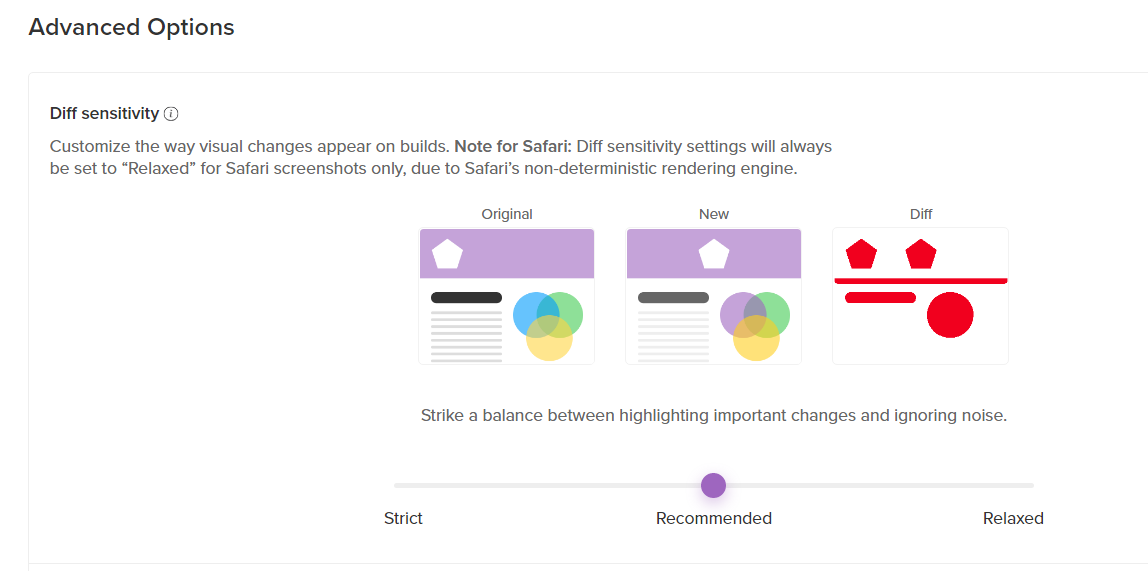
Note: Changing the sensitivity setting may cause the escape of the actual visual defect so, change this option only if it is required.
How can Percy Improve Visual Test Accuracy?
Percy by BrowserStack is an AI-powered visual testing platform that automates visual regression testing for web applications, helping teams ship consistent, high-quality interfaces with every code change.
Integrated directly into CI/CD pipelines, Percy detects meaningful layout shifts, styling issues, and content changes using advanced AI. This significantly reduces false positives and shortens review cycles, enabling faster and more reliable releases.
- Effortless Visual Regression Testing: Integrates seamlessly into CI/CD workflows with minimal setup, working alongside functional test suites, Storybook, and Figma for true shift-left visual testing.
- Automated Visual Regression: Captures screenshots on every commit, compares them against baselines, and flags visual regressions such as layout breaks, style inconsistencies, or component-level issues.
- Visual AI Engine: Percy’s Visual AI Engine automatically ignores visual noise from dynamic elements, animations, and anti-aliasing, focusing only on changes that impact the user experience. Features like Intelli Ignore and OCR help differentiate genuine UI shifts from minor pixel-level differences, dramatically reducing false positives.
- Visual Review Agent: Highlights impactful changes with bounding boxes, generates easy-to-read summaries, and accelerates review workflows by up to 3x.

- No-Code Visual Monitoring: Visual Scanner enables rapid, no-install setup to scan and monitor thousands of URLs across 3,500+ browsers and devices. Teams can trigger scans on-demand or on schedule, exclude dynamic regions, and instantly compare staging, production, or other environments.
- Flexible and Comprehensive Monitoring: Supports hourly, daily, weekly, and monthly scans, offers historical comparisons, and works across environments. Includes support for local testing, authenticated pages, and proactive issue detection before release.
- Broad Integrations: Works with all major frameworks and CI providers, supported by robust SDKs for quick onboarding and seamless scalability.
App Percy extends these capabilities to native mobile apps on iOS and Android. It runs tests on real devices to ensure pixel-perfect consistency, while AI-powered handling of dynamic elements minimizes flaky tests and false positives.
With simple plug-and-play integration requiring just one line of code, App Percy supports Appium, WebdriverIO, Java, Python, and more. Scalable parallel execution accelerates build times by up to 10x, and a unified dashboard provides logs, screenshots, videos, and enterprise-grade compliance.
Pricing Details for Percy:
- Free Plan: Up to 5,000 screenshots per month—ideal for small projects or getting started.
- Paid Plan: Starts at $199 with advanced features, with custom enterprise options available.
Conclusion
False positives remain one of the most common challenges in visual testing, especially for applications that rely on dynamic content. These scenarios require reliable ways to filter out noise and highlight only the changes that truly matter. Modern visual testing tools simplify this by offering built-in options that teams can configure with minimal effort, and Percy is a strong example of this approach.
Percy supports a wide range of SDKs, including Cypress, Playwright, Selenium, Storybook, TestCafe, and NightwatchJS. This flexibility makes it easy to integrate visual testing into existing workflows. Percy also delivers highly accurate results. It may appear to be a simple image comparison tool, but its underlying technology goes much further to keep visual diffing stable, intelligent, and dependable.
This combination of broad compatibility, AI-driven accuracy, and thoughtful handling of dynamic content makes Percy a powerful solution for reducing false positives and strengthening visual test reliability.
Useful Resources for Visual Testing
- How to capture Lazy Loading Images for Visual Regression Testing in Cypress
- How to Perform Visual Testing for Components in Cypress
- How to run your first Visual Test with Cypress
- How Visual Diff Algorithm improves Visual Testing
- How is Visual Test Automation changing the Software Development Landscape?
- How does Visual Testing help Teams deploy faster?
- How to perform Visual Testing for React Apps
- How to Run Visual Tests with Selenium: Tutorial
- How to reduce False Positives in Visual Testing?
- How to capture Lazy Loading Images for Visual Regression Testing in Puppeteer
- How to migrate your Visual Testing Project to Percy CLI
- Why is Visual Testing Essential for Enterprises?
- Importance of Screenshot Stabilization in Visual Testing
- Strategies to Optimize Visual Testing
- Best Practices for Visual Testing
- Visual Testing Definitions You Should Know
- Visual Testing To Optimize eCommerce Conversions
- Automate Visual Tests on Browsers without Web Drivers
- Appium Visual Testing: The Essential Guide
- Top 17 Visual Testing Tools
Frequently Asked Questions
1. How do visual testing false positives impact overall test reliability?
False positives reduce confidence in test results by flagging harmless or expected UI variations as defects. This creates noise, increases review time, and makes it harder to identify real visual regressions.
2. What types of UI changes commonly trigger false positives during visual testing?
Small rendering shifts, dynamic data, inconsistent loading times, and environment-based differences often cause false positives because pixel-based comparison tools may interpret them as unexpected changes.
3. How can teams keep baseline screenshots accurate as a product evolves?
Teams can regularly refresh baselines after approved design updates, automate baseline management through CI, and version-control snapshots to ensure comparisons stay aligned with current UI standards.
4. Why do different browsers or devices cause visual inconsistencies in test results?
Browsers and devices can render fonts, spacing, shadows, and anti-aliasing differently. These variations, although visually insignificant to users, can appear as diffs during snapshot comparisons.
5. How does Percy help reduce false positives in visual testing?
Percy uses AI-driven comparison, dynamic content handling, and intelligent noise filtering to distinguish meaningful UI changes from minor cosmetic variations. This significantly lowers false positives and speeds up visual reviews.
 Featured Article



