Geo-location testing is important to check that the web applications are performing as expected for all the users across different geographical locations. There are various use cases where the application functionalities are dependent on the user location such as while ordering food, booking flights, etc. in such cases, Geo-location testing becomes essential as a part of Functional Testing.
Overview
Why Geolocation Testing Matters
- Verifies location-based features like maps and local content.
- Ensures compliance with location-specific regulations.
- Enhances user experience by providing relevant content.
Implementing Geolocation in Cypress
- Create a function to mock the Geo Location inside cypress code.
- Call the mocked function with cypress cy.visit().
- Choose the tests to execute and validate the location in results.
Run Geolocation Test in BrowserStack
- Run and configure Browserstack CLI to create browserstack.json in your Project Directory.
- Enter the fields – auth, browsers, run_settings
- Run the Cypress tests on BrowserStack and validate the results.
This article discusses Mocking Geo Location by specifying the GPS coordinates or latitude/longitude using Cypress.
GPS based Geo Location
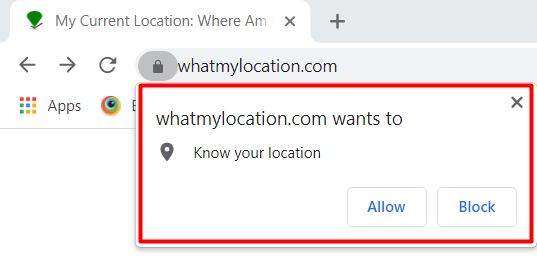
You may have come across situations, wherein certain websites invoke a browser popup stating “xyz.com wants to know your location”. The reason for doing so is that the website wants to customize or use some location-based data to make the services better. Hence, by selecting Allow, the user allows the application to track their GPS location.
How to Customize Geo-Location in Chrome Browser?
Chrome DevTools also provides, customizing Geo Location
Step 1: Open Chrome DevTools using CTRL +SHIFT + J (For Mac Option + ⌘ + J)
Step 2: Open Run Command Window using CTRL + P (For Mac CMD +P)
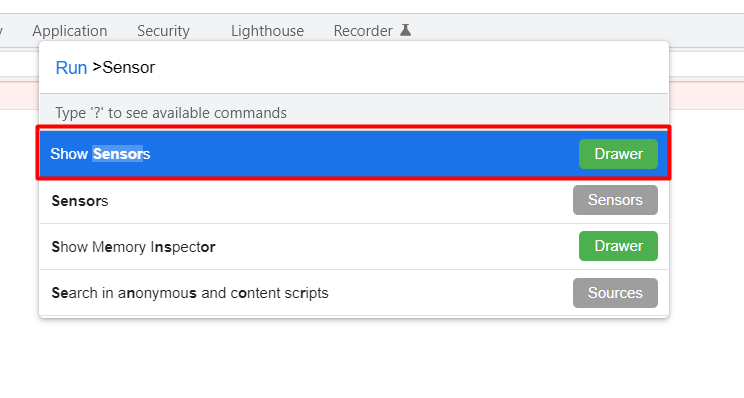
Step 3: Type Sensor and choose Show Sensors
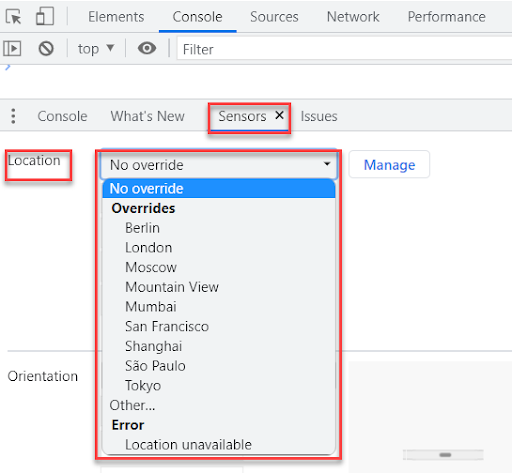
Step 4: Sensors Tab Opens Up
Step 5: Set the Location, Ex: London, Tokyo, etc.
Set Mock Geolocation Using Cypress Test Automation Tool
The above-said technique works for Manual Testing, but if the number of tests is higher, then manual testing might take a lot of time, and hence test automation is needed in such cases to test geo-based functionalities on the website. In such a case, you need to mock the Geolocation using Cypress Test Automation.
Cypress framework provides the option to mock the location, using cy.stub() command. Here you need to tell the browser to set the current location to the desired location. To set the location programmatically GPS coordinates are needed. GPS coordinates are written in terms of latitude and longitude values, by using the latitude and longitude values, it is easy to set the browser geolocation in Cypress.
Example of Mocking Geolocation in Cypress
Step 1: Create a simple function, which mocks the Geo Location inside your cypress code.
function mockLocation(latitude, longitude) {

    return {

      onBeforeLoad(win) {

        cy.stub(win.navigator.geolocation, "getCurrentPosition").callsFake((cb, err) => {

          if (latitude && longitude) {

            return cb({ coords: { latitude, longitude } });

          }

          throw err({ code: 1 });

        });

      }

    };

  }
The above function mockFunction(), takes two parameters latitude and longitude and the same passed parameter will be set as the geolocation.
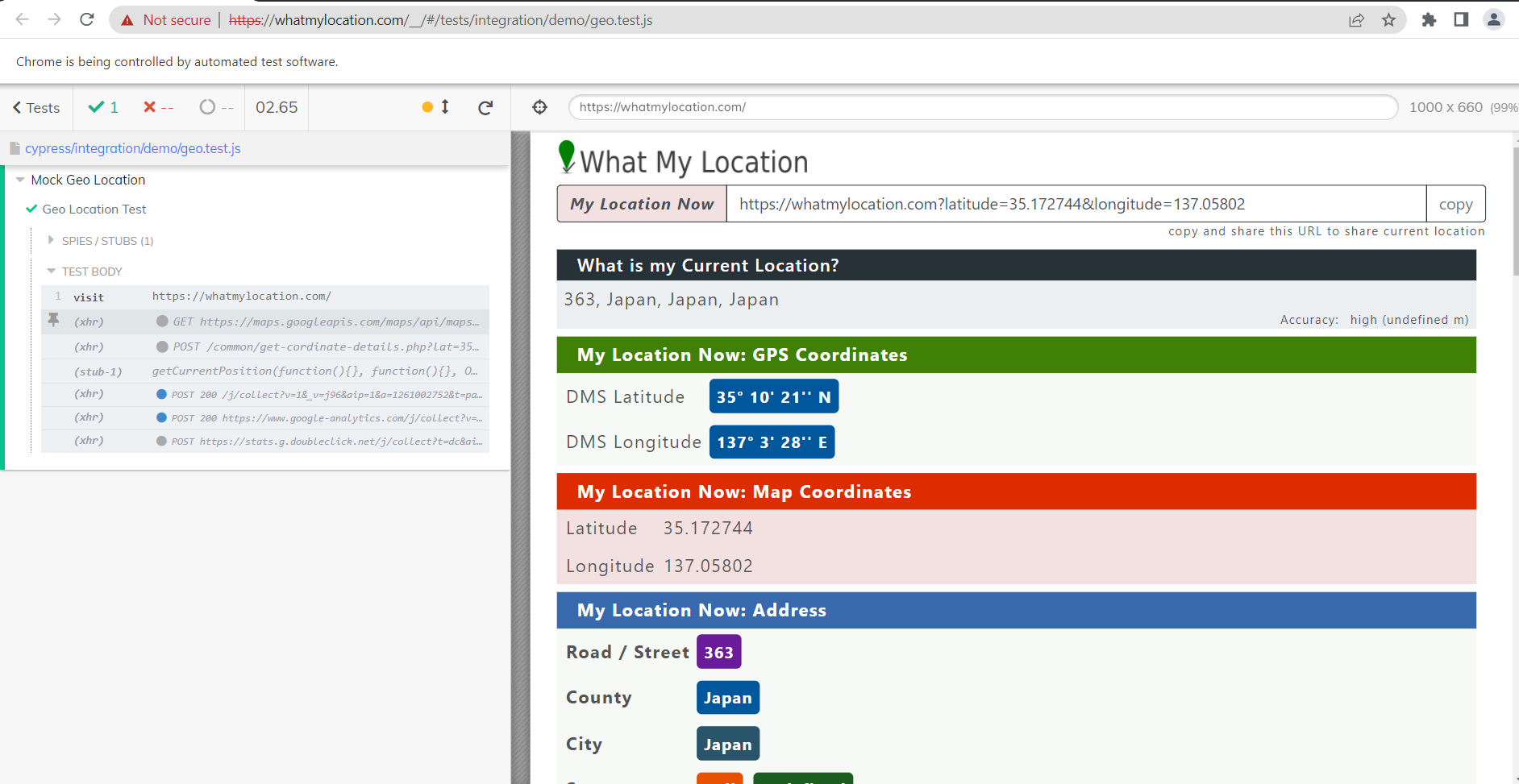
Step 2: Call the above function, with cypress cy.visit(), let’s take the latitude and longitude of Tokyo which is 35.172744, 137.05802.
cy.visit("https://whatmylocation.com/", mockLocation(35.172744,137.05802));The complete test looks like
//geo.test.js

function mockLocation(latitude, longitude) {

    return {

      onBeforeLoad(win) {

        cy.stub(win.navigator.geolocation, "getCurrentPosition").callsFake((cb, err) => {

          if (latitude && longitude) {

            return cb({ coords: { latitude, longitude } });

          }

          throw err({ code: 1 });

        });

      }

    };

  }

describe('Mock Geo Location', () => {

    it('Geo Location Test', () => {

      cy.visit("https://whatmylocation.com/", mockLocation(35.172744,137.05802));

    });

})
Step 3: Execute cypress tests manually by launching the Cypress window with the below command
npx cypress open
Step 4: Once the Cypress Window is open, choose your tests to execute
Or
Execute Cypress tests in the CLI tool by entering the below command in command-line tool
npx cypress run
Run Cypress Geo Location Tests on Real Devices
Test Result
Once the Cypress test is executed, you can see the geolocation/city name.
How to run the Geolocation in BrowserStack
To run the Geo Location on Real Devices, integrate your Cypess Geo Location tests with BrowserStack using the steps below:
Step 1: Install BrowserStack CLI using
npm install -g browserStack-cypress-cli
Step 2: Configure Browserstack CLI using
npx browserstack-cypress init
Step 3: The command above creates browserstack.json in your Project Directory. Enter the fields:
- auth – specify your username and access key. Learn about different auth options.
- browsers – change the list of browsers and OS if you want to
- run_settings – specify the cypress_config_file, parallels, npm_dependencies, and any other options that you want to change
Step 4: Run Your Cypress Tests on BrowserStack using
npx browserstack-cypress run –sync
Test Result
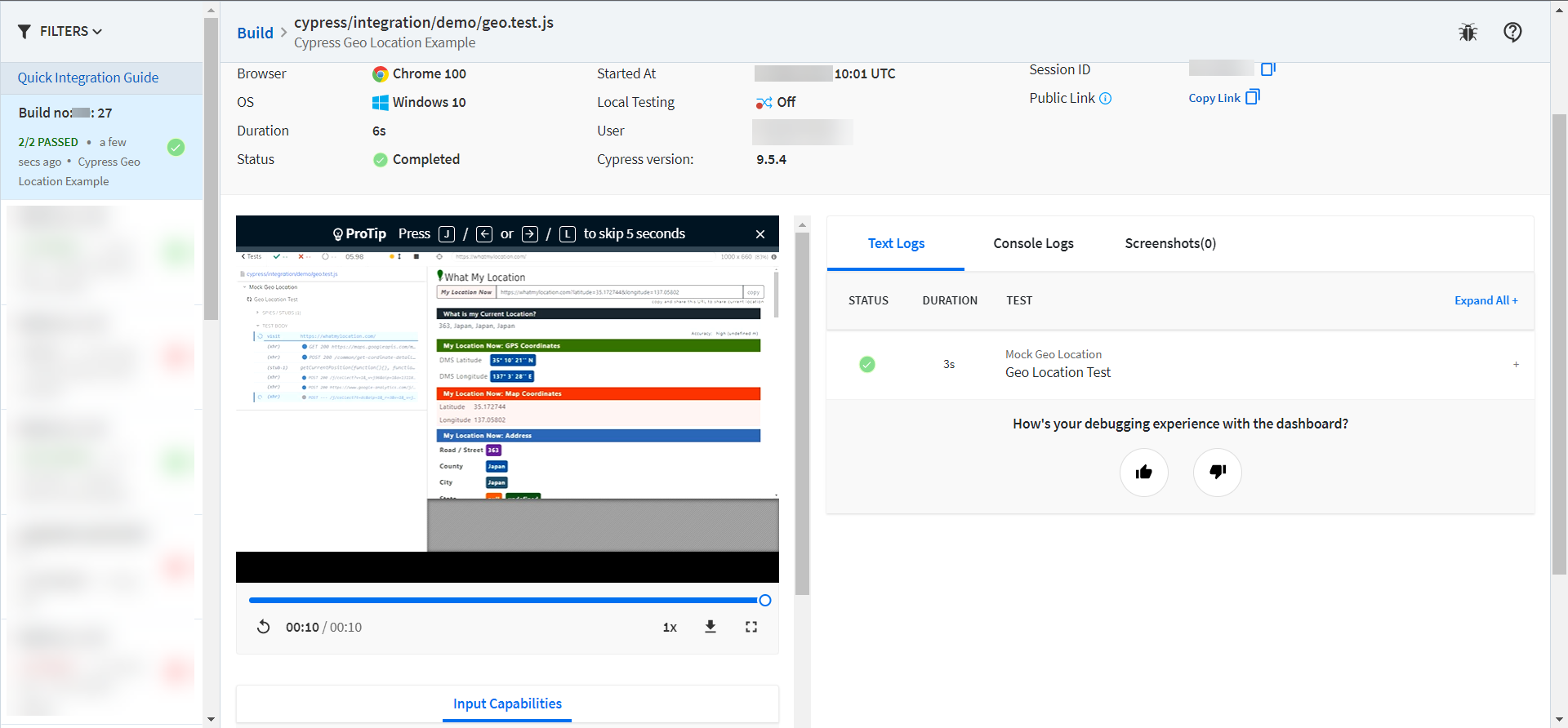
Once you complete the above steps, Signup or Login to BrowserStack and Navigate to BrowserStack Automate Dashboard to see the results.
Bear in mind that Cypress testing must be executed on real browsers and devices for accurate results. Start running tests on real device cloud to access 30+ versions of the latest browsers across Windows and macOS with BrowserStack Automate. Use instant, hassle-free Cypress parallelization to run Cypress Parallel tests and get faster results without compromising on accuracy. Detect bugs before users do by testing software in real user conditions with BrowserStack.
 Featured Article




