Creating a Maven project in Eclipse streamlines Java development by automating dependency management, builds, and project structure. Eclipse’s built-in Maven support simplifies setup, making it easier for developers to start, manage, and scale projects efficiently.
Overview
What Is Maven and Why Use It in Eclipse
- Maven is a powerful build automation and dependency management tool for Java projects.
- It helps standardize project structure, automate builds, and manage libraries easily.
- Eclipse IDE integrates seamlessly with Maven, providing a unified environment for coding, building, and testing.
Prerequisites Before Creating a Maven Project in Eclipse
- Install Eclipse IDE – Use the latest version for Java developers.
- Verify Maven Plugin – Most Eclipse versions include Maven by default; check if installed.
- Install JDK – Ensure the latest Java Development Kit is installed and JAVA_HOME is configured.
Step-by-Step Process to Create a Maven Project in Eclipse
- Launch Eclipse – Open the IDE and choose a workspace.
- Create a New Maven Project – Go to File > New > Maven Project and set the workspace location.
- Select a Project Archetype – Choose templates like maven-archetype-quickstart (for Java) or maven-archetype-webapp (for web apps).
- Configure Project Details – Enter Group ID, Artifact ID, Version, and Package.
- View Project Structure – Once created, view and manage your Maven project in the Project Explorer.
Best Practices for Managing Maven Projects in Eclipse
- Keep pom.xml under version control to track dependency changes.
- Update dependencies regularly to maintain security and compatibility.
- Use Maven profiles for different environments (dev, test, production).
- Break large projects into modules for easier scalability and maintenance.
This article covered what Maven is, how it integrates with Eclipse, the step-by-step process to create a Maven project, and best practices to follow for effective project management.
What is Eclipse?
Eclipse is an open-source IDE widely used for Java development. It offers features like code editing, debugging, and project management capabilities.
It supports various programming languages and provides a flexible environment for developers to build and deploy applications. Also, with a list of plugins, integrating tools like Maven improves its functionality and performance.
Also Read: How to configure Selenium in Eclipse
Prerequisites Integrating Maven and Eclipse
In order to create Maven project in Eclipse, you have to ensure that the below mentioned packages are completely installed:
- Eclipse IDE: Download your system’s latest version of Eclipse IDE for Java developers.
- Maven: Generally, Eclipse has built-in Maven support, but verify that the plugin is properly installed.
- Java Development Kit (JDK): Install the latest JDK and correctly set the JAVA_HOME environment variable.
Read More: What is the role of Maven in DevOps?
Step-by-Step Guide on Creating Maven Project in Eclipse
Here are the steps to be followed for creating a Maven project in Eclipse IDE:
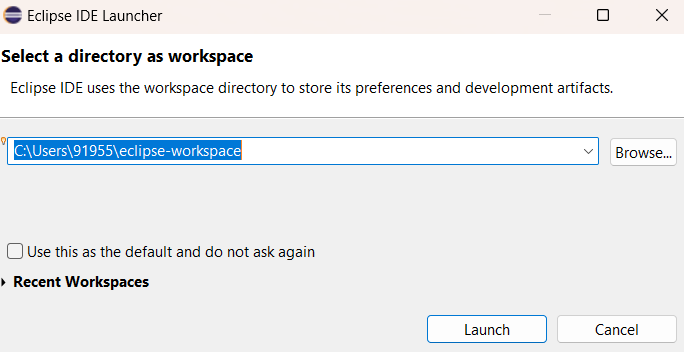
Step 1: Launch Eclipse
- Open the Eclipse IDE in your system.
- Select a workspace where you want to store your Maven project.
Step 2: Create a New Maven Project
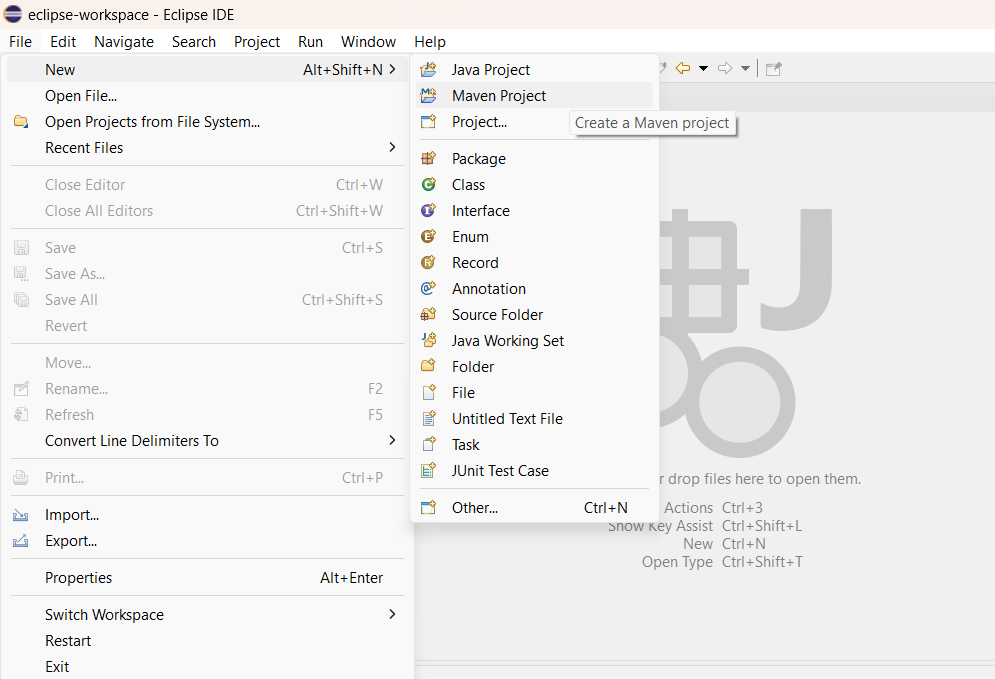
- Go to File > New > Maven Project.
- Select the default workspace location or browse it accordingly. Then, click Next.
Step 3: Select an Archetype
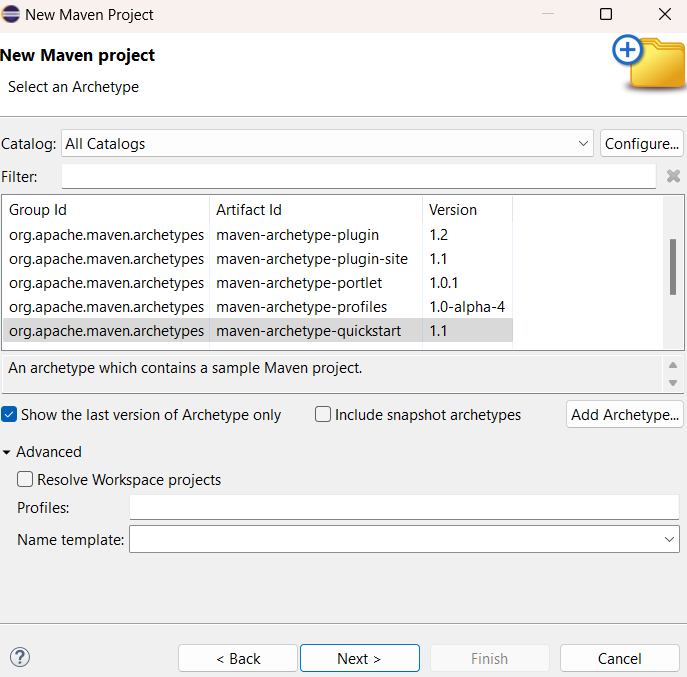
An archetype is a template for your project structure.
Some of the common ones are:
- maven-archetype-quickstart for a simple Java project.
- maven-archetype-webapp for web applications.
For this example, choose maven-archetype-quickstart and click Next.
Step 4: Configure Your Complete Project
Certain details need to be inserted as mentioned below:
- Group ID: This is your project’s unique identifier, typically in reverse domain name format (example, com.example).
- Artifact ID: This is the name of your Maven project.
- Version: Select the specific version of your project.
- Package: This is the base package name for your Java classes.
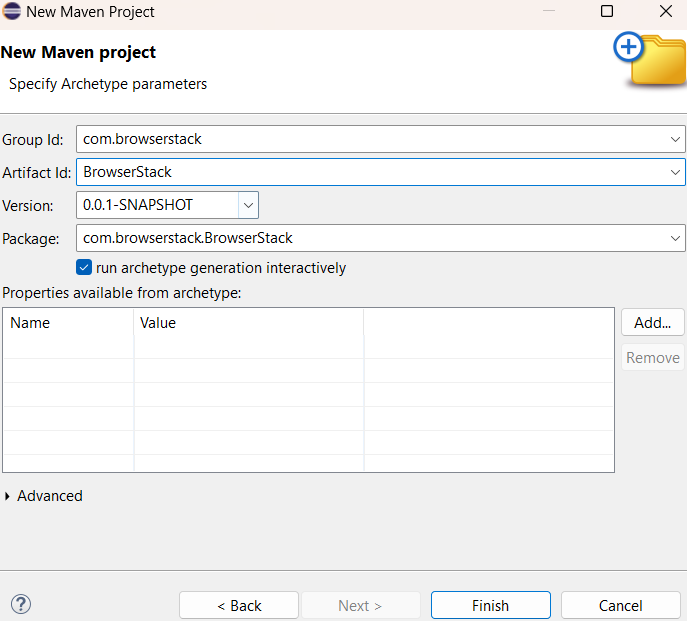
Click on Finish to create your project after entering details.
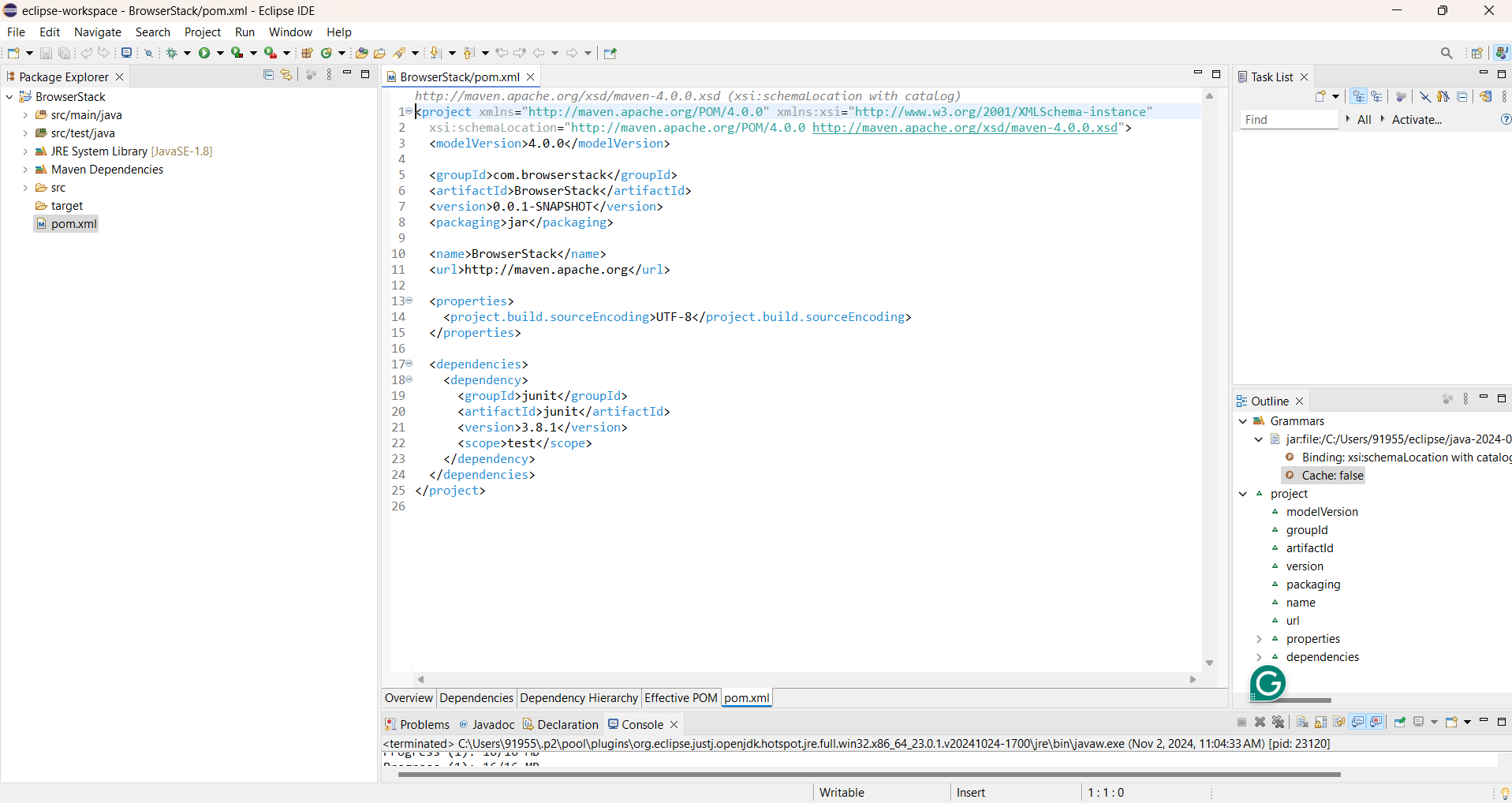
Step 5: View Your Maven Project Structure
After clicking on the Finish button, the project will start getting created. Provide the confirmation with Y/N to complete it.
Once it is done, you can see the new Maven project in Project Explorer.
Read More: Maven vs Jenkins: Key Differences
Best Practices for Maven in Eclipse
Some of the best practices for Maven in Eclipse include:
- Always keep your pom.xml under version control to manage changes in dependencies and project configurations.
- Keep All the Dependencies Updated in your pom.xml to avoid security vulnerabilities and integrate new features.
- Consider splitting larger projects into multiple modules for better management and scalability.
- Use Maven profiles for different environments (development, testing, production) to manage configurations more effectively.
Why you should Run Automated Tests on Real Devices
Running automated tests on real devices is important to check that your application performs well across different environments. By testing on actual devices, you can catch issues that would otherwise go unnoticed.
BrowserStack Automate offers a real device cloud platform where you can access over 3500+ different devices, browsers, and OS combinations.
Some of its primary features are:
- Access to Wide Range of Real Devices: BrowserStack allows you to test on the latest models and operating systems without needing physical device management.
- Seamless Integration: It integrates effortlessly with popular testing frameworks like Selenium, Appium, and others, enabling you to incorporate real device testing into your existing CI/CD pipelines.
- Real-Time Testing: With BrowserStack, you can run tests in real-time and get immediate feedback on performance and functionality, speeding up the development process.
- Support of Parallel Testing: Test on multiple devices simultaneously by reducing the time required for complete testing.
- Detailed Reports: BrowserStack provides detailed logs and reports that can help you identify issues quickly, making it easier to find bugs before the launch.
Conclusion
Creating a Maven project in Eclipse IDE enhances the Java development workflow. By following all the essential steps, anyone can easily set up the projects efficiently, manage dependencies, and use powerful tools for building and testing your applications.
With the added benefits of testing on real devices, BrowserStack Automate ensures that your applications are robust and user-friendly.
 Featured Article


