Automation in mobile application testing gives a productive edge to the entire testing cycle. Be it accessibility that we need to test for a particular mobile application or any other functionality, automation speeds up the whole process and overtakes efficiency along with precision.
Overview
Automated Test Scripts – What They Are
- Predefined instructions to validate app functionality without manual input.
- Run assertions → mark pass/fail → generate logs & reports.
- Example use case: Accessibility checks (e.g., app content across multiple locales & languages).
Steps to Create & Run Automated Test Scripts on App Automate
- Upload App – via API or directly on the App Automate dashboard.
- Get App URL – unique identifier (bs://…) used in capabilities.
- Set Desired Capabilities – include user credentials, device/OS, app URL, and optional locale/language.
- Write Script with Appium – locate and interact with app elements, assert expected outcomes.
- Run & Monitor – execution runs on BrowserStack’s real devices; view logs, screenshots, and results in the dashboard.
- Close Session – always end with driver.quit() to release resources.
This article explores how to create and run automated test scripts for mobile applications.
What are Automated Test Scripts For Mobile Applications
Automated test scripts perform several tasks in tandem without the interruption of any end-user or external factor. The assertions are checked for success or failure depending on the test cases and reparations are made based on the reports and logs.
Let us take a simple example – We have created a simple mobile web application and we want to check the web content accessibility of the application and its web elements.
Here we can simply make use of appium and create a test script that will test the web content accessibility of the applications on specific parameters such as “Supporting various locales and languages”. This is one such example, where the test script will automatically test the application on various locales and languages, and assert the success of the events.
Let’s take a look at how we can create and run Automated Scripts for Mobile Applications on BrowserStack App Automate.
Run Automates Test Scripts for Mobile Apps on Real Devices
Creating And Running Automated Test Scripts for Mobile Applications
We will follow the following steps to create and run an automated test script for a dummy mobile application.
Step 1 Upload your application on the App Automate server. Here, we have the option to make an upload using the BrowserStack API while another option gives us easier access to the dashboard where we can simply upload the application on the server as shown in the picture below. 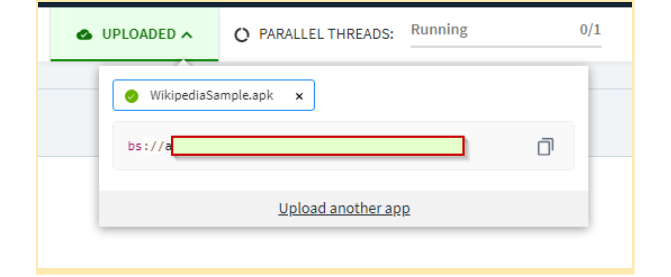 Step 2 After uploading the application, we will get a code, that will be useful while writing the desired capabilities for the test case.
Step 3 Once, we have generated the code, We can define the desired capabilities shown in the script written below.
[python]

desired_cap = {

    # Set your access credentials

    "browserstack.user": "Xxxxxxxxxxxxxxxxxxxxxxxx",

    "browserstack.key": "xxxxxxxxxxxxxxxxxxxxxx",


    # Set URL of the application under test

    "app": "bs://xxxxxxxxxxxxxxxxxxxxxxxxxx",


    # Specify device and os_version for testing

    "device": "Samsung Galaxy S22 Ultra",

    "os_version": "12.0",


    # Set other BrowserStack capabilities

    "project": "Automation Test Script",

    "build": "browserstack-build",

    "name": "Automation Test",


    # set the language capabilities

    "language": "es",

    "locale": "ES"

}

[/python]
Step 4 In the code written below, we are locating a web element in the application and interacting with the same. We are using the Samsung S22 Ultra device with OS version 12.0 to run our test. In this test script, we are also using the language capabilities, where we will interact with the web elements in the Spanish language. .
[python]


# Initialize the remote Webdriver using BrowserStack remote URL

# and desired capabilities defined above

driver = webdriver.Remote(

    command_executor="http://hub-cloud.browserstack.com/wd/hub",

    desired_capabilities=desired_cap

)


appStrings = driver.app_strings(

    "<es>"

)

# Test case for the BrowserStack sample Android app.

# If you have uploaded your app, update the test case here.

search_element = WebDriverWait(driver, 30).until(

    EC.element_to_be_clickable((MobileBy.ACCESSIBILITY_ID, "Buscar en Wikipedia"))

)

search_element.click()

search_input = WebDriverWait(driver, 30).until(

    EC.element_to_be_clickable(

        (MobileBy.ID, "org.wikipedia.alpha:id/search_src_text"))

)

search_input.send_keys("BrowserStack")

time.sleep(5)

search_results = driver.find_elements(MobileBy.CLASS_NAME, "android.widget.TextView")

assert (len(search_results) > 0)


# Invoke driver.quit() after the test is done to indicate that the test is completed.

driver.quit()

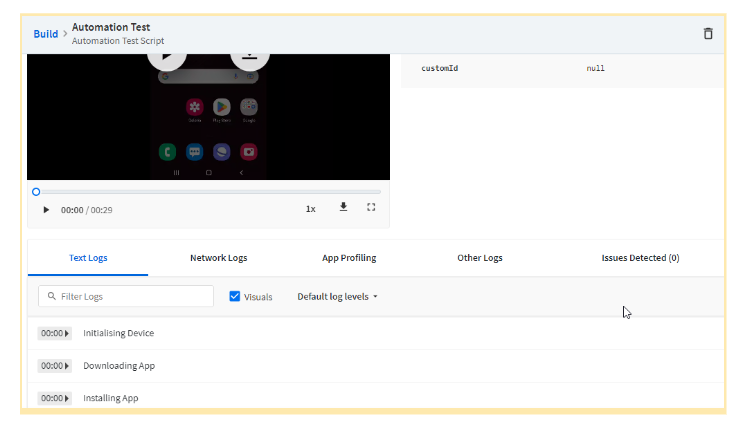
[/python]Step 5 When we run the above script – the script takes us to the App Automate dashboard where we can analyze the progress of the test cases and investigate the test logs if something goes wrong during the test.
 Advantages of Using App Automate
 Advantages of Using App Automate
Here are some of the advantages that give you an enhanced experience with creating and running automated test scripts for mobile applications using appium.
- Multiple programming languages are supported including Java, Python, Ruby, etc.
- You get access to various operating systems to test your applications on including Windows, macOS, etc.
- You get a wide range of devices on various operating systems and version of browsers to test your applications on.
- The desired capabilities are easier to write with BrowserStack’s desired capability generator for appium.
- Easier access to test reports and logs to understand and evaluate the test cases for reparations.
Conclusion
In the end, hassle-free automated mobile application testing is topped with BrowserStack App Automate and the various features that it provides. The very purpose of automation origins from less human intervention and eliminating the long complicated procedure of setting up an appium testing environment is a marvel in itself that makes the entire testing life cycle faster and automated in its truest form.
 Featured Article



