Releasing mobile apps globally requires careful validation across geographies, as performance, security, and user experiences can vary based on region. One critical aspect is ensuring apps function correctly across different time zones, since features like notifications, transactions, or scheduling depend on accurate time settings. While manual testing is possible, automation with Appium and BrowserStack streamlines the process, allowing teams to set and test custom time zones efficiently.
This guide explains how to change time zones for mobile app testing using Appium.
Overview
Why Test in Different Time Zones?
- Apps behave differently across regions (notifications, events, payments).
- Ensures global readiness & consistent user experience.
- Helps uncover region-specific bugs or security concerns.
Manual vs. Automated Testing
- Manual: Changing device location/time zone repeatedly = slow, error-prone.
- Automated (Appium + BrowserStack): One-line capability (browserstack.timezone) sets custom time zones instantly.
Prerequisites to Test Time Zones in Appium
- Appium desktop client
- JDK installed
- Development IDE (e.g., Eclipse)
- BrowserStack account credentials
Key Steps to Change Time Zones Using Appium
- Configure Appium setup & dependencies.
- Create a new Java project/package/class.
- Add BrowserStack capabilities (app URL, device, OS version).
- Use capability:
caps.setCapability(“browserstack.timezone”, “Kolkata”); - Run test → Verify timezone with driver.getDeviceTime().
- Quit driver session.
This guide explains how to change time zones for mobile app testing using Appium.
Need For App Testing in a Different Timezone
A mobile app is often released in different versions for different regions according to the people and business requirements. Even security threats and privacy levels differ with geolocation. In such scenarios, thorough geolocation testing is necessary for all regions where it is planned to be rolled out. To perform such testing, testers would require changing the subsequent location and time zone in the mobile device.
Apps can be tested manually or through automation in different time zones, like in Appium. Testing apps in various geo locations and different devices manually is cumbersome as to execute such testing; testers need to change the location manually in mobile devices.
Also Read: How to perform Manual Mobile Testing?
How to Test Time Zones for Mobile App using Automation
In automation testing, the default geolocation setting needs to be changed in Appium, and the same can be done speedily by using a one-liner function to change the required location in Appium.
BrowserStack enables the user to set a custom Timezone on any BrowserStack mobile device. Custom Timezone can be set using Browserstack Appium capability browserstack.timezone and users can choose any of BrowserStack’s supported timezones.
Prerequisites to Test Time Zones in Appium
- Appium desktop client
- JDK
- Development IDE/Eclipse
Steps to Change Time Zones For Mobile App Testing Using Appium
Ensure that you have the Appium setup and testing dependencies configured on your system.
- Create a new java project.
- Create a package and a class
- Add all required capabilities
- Function to scroll down and take action
Code to Change Time Zone using Appium
package testing;
import java.net.URL;
import java.util.List;
import java.util.function.Function;
import java.net.MalformedURLException;
import io.appium.java_client.MobileBy;
import io.appium.java_client.android.AndroidDriver;
import io.appium.java_client.android.AndroidElement;
import org.openqa.selenium.support.ui.ExpectedConditions;
import org.openqa.selenium.support.ui.WebDriverWait;
import org.openqa.selenium.ScreenOrientation;
import org.openqa.selenium.WebDriver;
import org.openqa.selenium.remote.DesiredCapabilities;
import org.testng.annotations.Test;

public class Timezone {

public static void main(String[] args) throws MalformedURLException, InterruptedException {

DesiredCapabilities caps = new DesiredCapabilities();

// Set your access credentials
caps.setCapability("browserstack.user”, <user-name>);
caps.setCapability("browserstack.key", <access-key>);

// Set URL of the application under test
caps.setCapability("app", "Browserstack generated URL for the test app uploaded");
// Specify device and os_version for testing
caps.setCapability("device", "Samsung Galaxy A52");
caps.setCapability("os_version", "11.0");

// Set other BrowserStack capabilities
caps.setCapability("project", "First Java Project");
caps.setCapability("build", "browserstack-build-1");
caps.setCapability("name", "first_test");
// set desired location to change timezone
caps.setCapability("browserstack.timezone", "Kolkata"); // time zones available for automation testing using Browserstack capability
// Initialise the remote Webdriver using BrowserStack remote URL
// and desired capabilities defined above
AndroidDriver<AndroidElement> driver = new AndroidDriver<AndroidElement>(
new URL("http://hub.browserstack.com/wd/hub"), caps);

//Get device timezone using deviceInfo command
driver.executeScript("mobile:deviceInfo");

//Returns device time as per device's Timezone
String time = driver.getDeviceTime();
System.out.println("time: "+ time);
System.out.println("test completed");

// Invoke driver.quit() after the test to close the driver session.
driver.quit();

}
}
Test Result
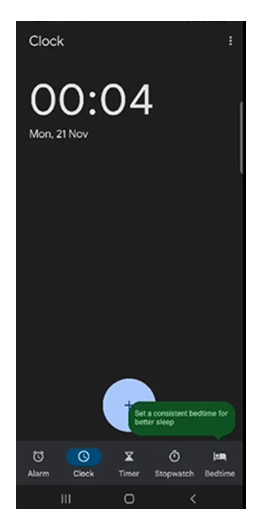 Timezone Kolkata
 Timezone New York
By using the above Appium capability, provided by Browserstack, timezone can be set to any region/location easily worldwide depending on user’s requirement and use case.
In case, user is looking to test their website or apps on different browsers and devices, BrowserStack offers 3000+ real browsers and devices for manual and automation testing. QAs can test Android or iOS apps on thousands of real mobile devices, both latest and legacy. They can integrate seamlessly with the BrowserStack cloud via numerous testing frameworks – Appium, Espresso, XCUITest, or EarlGrey.
 Featured Article



