Labels/Tags are essential for categorizing and organizing projects, builds and snapshots. They improve the ability to filter and search for specific builds and snapshots, enhancing overall project management. By using labels/tags, teams streamline workflows, facilitate better tracking and management, and enhance collaboration, ensuring everyone stays on the same page.
Minimum required @percy/cli version is 1.28.8.
Create project labels/tags
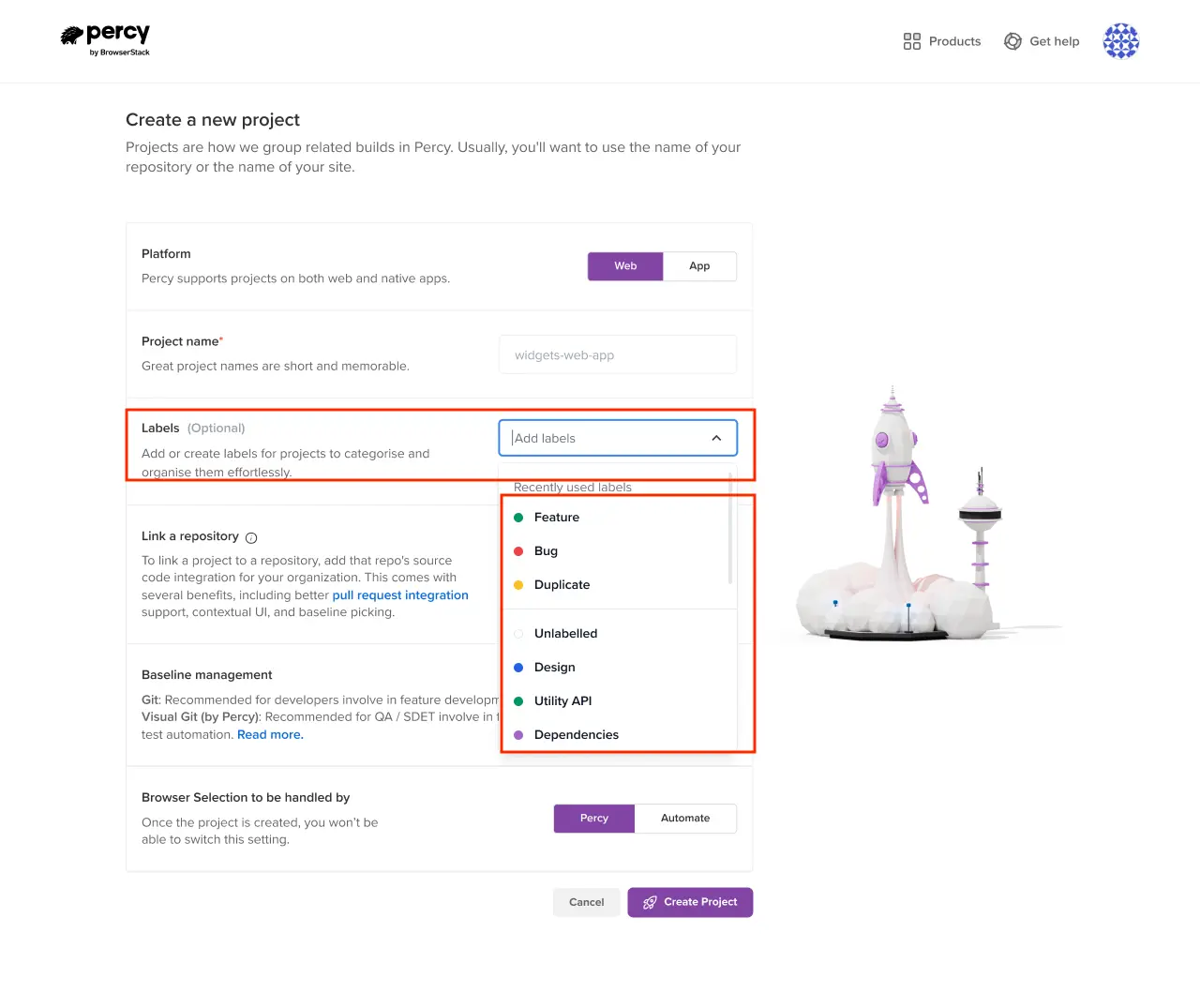
You can create project labels/tags while setting up a App Percy project. Navigate to Create Project, select the type of project, enter the name and add your own label/tags or choose from the available options.
Once the build is generated, you will see the added labels/tags in your build on the Projects page.
Create builds with labels/tags
You can create new builds with labels/tags using the --labels option in Percy CLI commands. Add multiple labels/tags by separating them with commas. To include spaces in labels/tags, use double quotes.
Example CLI command
```bash
npx percy exec --labels=canary,p1 -- <original test command>
```
You can associate snapshots with labels/tags by utilizing the percyScreenshot function and including the labels/tags as a key in the options parameter.
This enables you to effectively manage and filter your snapshots and builds using labels/tags, improving organization and workflow efficiency.
Search using labels/tags
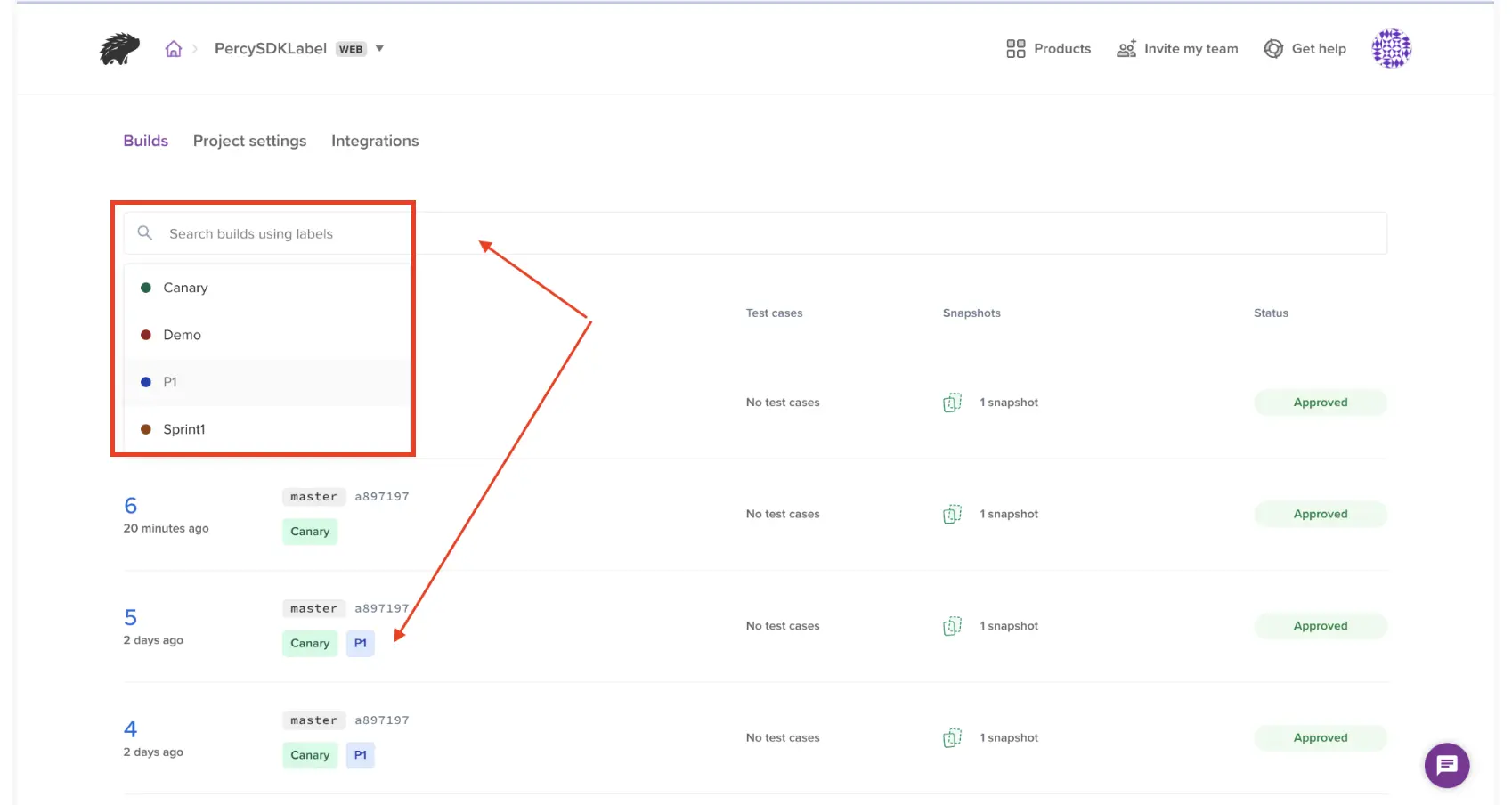
The Projects and Builds pages now include a newly introduced search text box that enables you to search using labels/tags. Additionally, you can search snapshots using labels and names for individual snapshots on the review page by clicking the search icon.
Clicking the search text box will automatically populate a dropdown menu with all valid labels/tags used across the organization, including those in projects, builds, and snapshots.
You can select one or more labels/tags and optionally add a search term to search within the project, build or snapshot name on those pages.
Did this page help you?
We're sorry to hear that. Please share your feedback so we can do better
Contact our Support team for immediate help while we work on improving our docs.
We're continuously improving our docs. We'd love to know what you liked
Thank you for your valuable feedback
Is this page helping you?
Yes
No
We're sorry to hear that. Please share your feedback so we can do better
Contact our Support team for immediate help while we work on improving our docs.
We're continuously improving our docs. We'd love to know what you liked

 Join our Discord